

The FullStack Alpha research desk tests AI trading bots on paper and live accounts. Reviewed and edited by Jay Rocco, Founder and Editor.
By FullStack Alpha Editorial Team | Reviewed by Jay Rocco, Chief Editor
Alpaca MCP is Alpaca’s official Model Context Protocol server, and it lets Claude read your Alpaca account, pull market data and place orders from a normal chat window. Setting it up with a free paper account takes four things: Alpaca paper API keys, Python 3.10 or newer, the uv package manager, and one short JSON block in Claude’s config file. The server defaults to paper trading (ALPACA_PAPER_TRADE is true unless you set it to false), so a fresh install cannot touch real money by accident. Run read-only checks first, then a one-share paper order, and only think about live keys after weeks of logged paper fills.
Key insights
- The server is at version 2.4.0 per its GitHub README and pyproject file, a full V2 rewrite on FastMCP and OpenAPI. None of the V1 tool names carry over, and V1 tutorials will break.
- The README lists 72 tools across account, trading, positions, watchlists, market data, news, fixed income, locates and docs lookup. Alpaca’s own docs page still says 65, because it predates the newer tools.
- Setup has no
initcommand and no.envfile. Credentials live only in your MCP client’senvblock:ALPACA_API_KEYandALPACA_SECRET_KEY. ALPACA_TOOLSETSlets you strip the server down to read-only data tools, which is the safest way to start.- Free paper accounts get IEX data only. Full-market SIP data is Alpaca’s Algo Trader Plus plan at $99 a month, per Alpaca’s market data docs.
What Is the Alpaca MCP Server?
MCP stands for Model Context Protocol. It is an open standard that lets an AI model like Claude call outside tools instead of only writing text. The Alpaca MCP server is Alpaca’s own implementation of that standard: it wraps Alpaca’s Trading API and Market Data API so any MCP-compatible client can call them.
Think of MCP as a universal adapter. Before it existed, every AI company built its own plug for every data source. MCP is the outlet that fits all of them. Alpaca built the plug on its end; Claude, Cursor, VS Code and other clients already have the socket.
Once connected, Claude can:
- Pull your account balance, buying power and portfolio history
- List open positions and recent orders
- Request quotes, bars and snapshots for stocks, ETFs, options and crypto
- Read news and corporate-action announcements
- Place, replace and cancel orders, including brackets, trailing stops and multi-leg options orders
That last line is the reason to slow down. The README’s own security notice says plainly that the server “can place real trades and access your portfolio.” Paper keys are your seatbelt.
What changed in version 2
Version 2 is a complete rewrite. Alpaca’s README says “None of the V1 tools exist in V2,” and tool names, parameters and schemas all changed. The old setup used a .env file and an init command; V2 drops both.
If you followed an older tutorial and Claude keeps calling tools that no longer exist, the README’s fix is simple:
- Remove the old config and treat V2 as a new server.
- Restart your MCP client so it fetches the new tool list.
- Start a fresh chat, because old conversations can hold stale tool names.
- Update any custom instructions that mention V1 tool names.
If you truly need V1, Alpaca says you can pin the last V1 release in your client config. For a new build, do not bother.
How many tools does it expose?
The GitHub README lists 72 tools in 2026. The breakdown: 6 account tools, 9 order tools, 6 position tools, 7 watchlist tools, 8 asset and calendar tools, 9 stock data tools, 8 crypto data tools, 7 options data tools, 1 corporate actions tool, 1 news tool, 1 fixed income tool, 4 short-sale locate tools and 5 documentation lookup tools.
Alpaca’s Trading API MCP docs page says 65. The gap is the newer locates and documentation tools. When the two disagree, trust the README, because it ships with the code.
What Do You Need Before You Install Alpaca MCP?
You need four things, and all of them are free to get: an Alpaca paper account with API keys, Python 3.10 or newer, the uv package manager, and an MCP client such as Claude Desktop or Claude Code. Claude itself has its own plan limits, which are separate from anything Alpaca charges.
Here is the checklist, matched to the README’s prerequisites:
- Alpaca paper account. Sign up at the Alpaca paper dashboard. Alpaca’s paper trading docs say anyone globally can open a Paper Only Account with an email address, and a new paper account starts with a $100,000 simulated balance by default.
- Paper API key and secret. Generate them in the paper dashboard. Paper keys are different from live keys, and the docs say the paper API spec is identical to live, so code that works on paper works on live with a key swap.
- Python 3.10+. The package declares
requires-python >= 3.10. - uv. It provides the
uvxcommand that launches the server without a manual virtual environment. Install it from the official uv guide. - An MCP client. The README covers Claude Desktop, Claude Code, Cursor, VS Code, PyCharm, Antigravity CLI and Docker. Alpaca’s docs page still lists Gemini CLI instead of Antigravity CLI, so re-read the client list before you publish your own setup notes.
Common mistake: copying a live key instead of a paper key. The dashboards look similar. Check that you are on the paper dashboard before you copy anything. If you want the long version on key hygiene, our guide to Alpaca API keys covers generating, storing and rotating them.
What about Claude Mobile and ChatGPT?
Both require a remote MCP server. Alpaca’s README says the package “does not configure remote MCP authentication, so do not expose it directly to the public internet with your Alpaca API keys.” Use the local setup from a desktop client. If you see a tutorial that tunnels the server to the open internet so a phone can reach it, skip it.
How Do You Set Up Alpaca MCP With Claude Desktop Step by Step?
Setting up Alpaca MCP with Claude Desktop takes five steps: generate paper keys, install uv, open Claude’s config file, paste one JSON block, and fully restart Claude. Budget 15 to 30 minutes if you have never edited a JSON file.
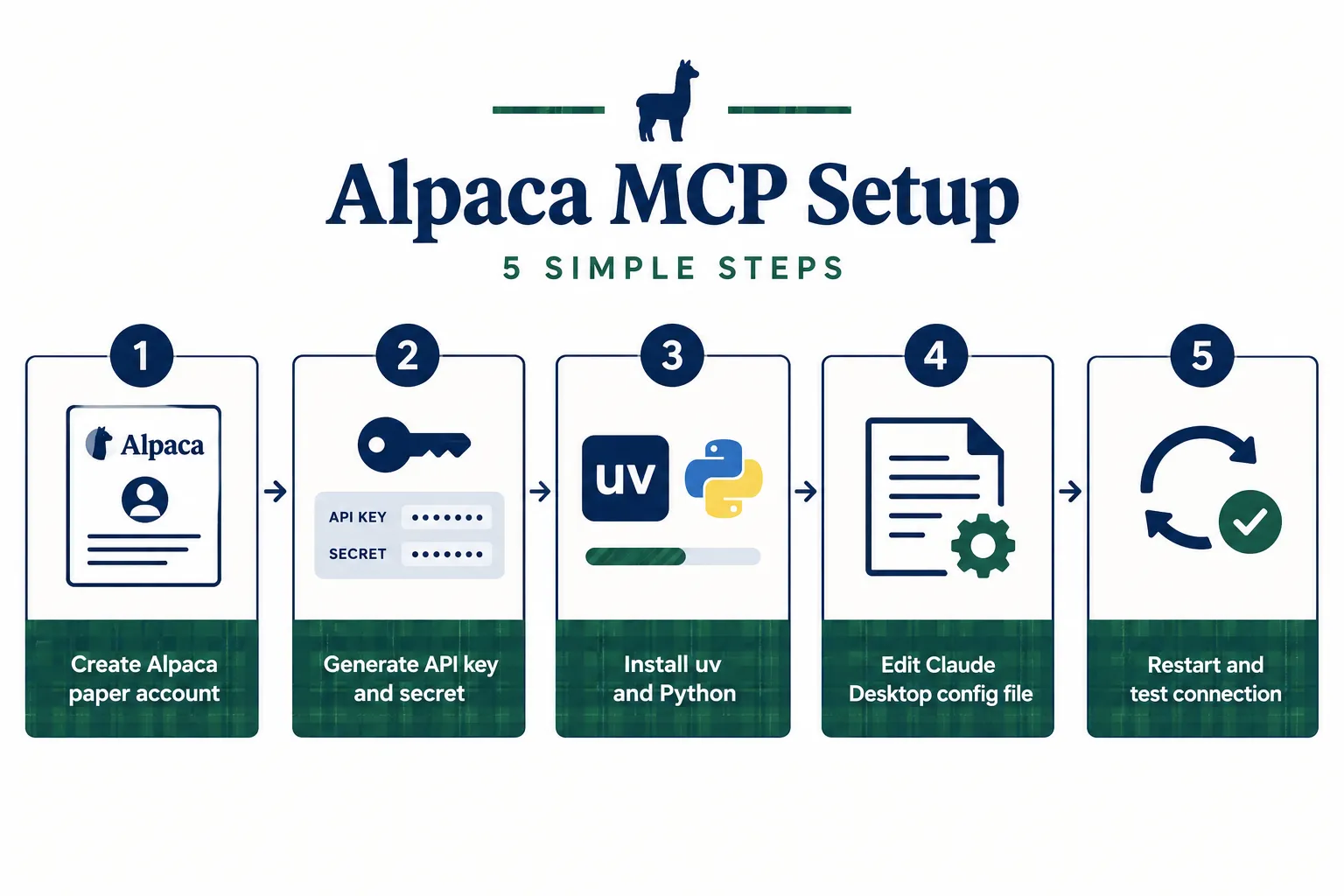
Step 1: Create your paper account and generate keys. Log in to the paper dashboard and generate an API key and secret. Copy both into a password manager right away.
Step 2: Install uv. Follow the uv installation guide, then open a new terminal so uv and uvx are on your PATH. The README’s troubleshooting section names a missing PATH as the first thing to check when uvx is “not found.”
Step 3: Open the Claude Desktop config file. Per the README, it lives at:
- Mac:
~/Library/Application Support/Claude/claude_desktop_config.json - Windows:
%APPDATA%\Claude\claude_desktop_config.json
If the file does not exist, create it.
Step 4: Paste the server entry. This is the official structure from Alpaca’s README. Replace the placeholders with your paper keys, and never paste real keys into a chat window or a public repo.
{
  "mcpServers": {
    "alpaca": {
      "command": "uvx",
      "args": ["alpaca-mcp-server"],
      "env": {
        "ALPACA_API_KEY": "YOUR_PAPER_API_KEY",
        "ALPACA_SECRET_KEY": "YOUR_PAPER_SECRET_KEY"
      }
    }
  }
}
If the file already has other servers, add the "alpaca" block inside the existing mcpServers object. A missing comma between two server blocks is the most common reason the file fails to load.
Step 5: Fully quit and reopen Claude Desktop, then start a new chat. Closing the window is not enough. The README’s fix for “client didn’t pick up new config” is a restart, and its V2 upgrade notes add a fresh chat so Claude sees the current tool list.
You do not need ALPACA_PAPER_TRADE in the block. It defaults to true. Leaving it out keeps you on paper.
How do you add Alpaca MCP to Claude Code, Cursor or VS Code?
Claude Code uses one terminal command, per the README:
claude mcp add alpaca --scope user --transport stdio uvx alpaca-mcp-server \
  --env ALPACA_API_KEY=YOUR_PAPER_API_KEY \
  --env ALPACA_SECRET_KEY=YOUR_PAPER_SECRET_KEY
Then type /mcp inside Claude Code to confirm the server is listed. Cursor reads the same mcpServers JSON from ~/.cursor/mcp.json. VS Code uses .vscode/mcp.json with a top-level "servers" key and "type": "stdio". The --scope user flag makes the server available in every project, not just the current folder.
Common setup errors and what they usually mean
Most setup failures come from four places: the config file, the keys, uv’s PATH, or a client that was not restarted. The README’s troubleshooting list covers the same ground.
| Symptom | Likely cause | Fix |
|---|---|---|
| No Alpaca tools appear after restart | JSON syntax error or wrong file location | Validate the JSON, check the path for your OS, fully quit and reopen |
uvx not found | uv not installed or not on PATH | Install uv, open a new terminal, restart the client |
| ”Credentials missing” | Keys not in the env block | Put ALPACA_API_KEY and ALPACA_SECRET_KEY in the client’s env block |
| Every call returns an auth error | Paper keys with ALPACA_PAPER_TRADE=false, or live keys on paper | Match the key type to the paper setting |
| Claude calls tools that do not exist | Cached V1 tool names | Restart the client and start a new chat |
| Quotes look off on small caps | Free IEX feed | Expected on the Basic plan; check Algo Trader Plus if you need full market data |
| Port conflict | Running with --transport streamable-http | Change --port to a free port |
Keep a known-good copy of your config file outside the app folder. When something breaks after an edit, you can diff against it in seconds.
Which Alpaca MCP Settings Control Paper, Live and Tool Access?
Two optional environment variables do the safety work: ALPACA_PAPER_TRADE decides paper or live, and ALPACA_TOOLSETS decides which tools Claude can see at all. Both go in the same env block as your keys.
| Variable | Required | Default | What it does |
|---|---|---|---|
ALPACA_API_KEY | Yes | none | Your Alpaca API key ID |
ALPACA_SECRET_KEY | Yes | none | Your Alpaca secret key |
ALPACA_PAPER_TRADE | No | true | Set to false only for live trading |
ALPACA_TOOLSETS | No | all | Comma-separated list of toolsets to enable |
The toolsets are: account, trading, watchlists, assets, stock-data, crypto-data, options-data, corporate-actions, news, fixed-income-data and locates. The README notes locates are not available in paper trading.
The read-only setup we recommend for week one
Leave trading out and Claude cannot see the order tools. Alpaca’s docs show a read-only example; this is the same idea:
"env": {
  "ALPACA_API_KEY": "YOUR_PAPER_API_KEY",
  "ALPACA_SECRET_KEY": "YOUR_PAPER_SECRET_KEY",
  "ALPACA_TOOLSETS": "account,assets,stock-data,news"
}
Restart the client after any change. Then ask Claude to “list the tools you have from Alpaca.” If no order tools appear, the filter works. This also helps with clients that cap how many tools a server can expose, a reason Alpaca’s docs give for the setting.
Add trading back when you are ready for paper orders. Switching to live means two changes together: live keys in place of paper keys, and "ALPACA_PAPER_TRADE": "false". If only one of those changes, calls fail, which is the safer failure.
How Do You Run Read-Only Checks First?
Run balance, position, quote and order-history checks before Claude goes anywhere near an order ticket. None of these calls can move money, and together they prove the connection, the keys and the data feed all work.
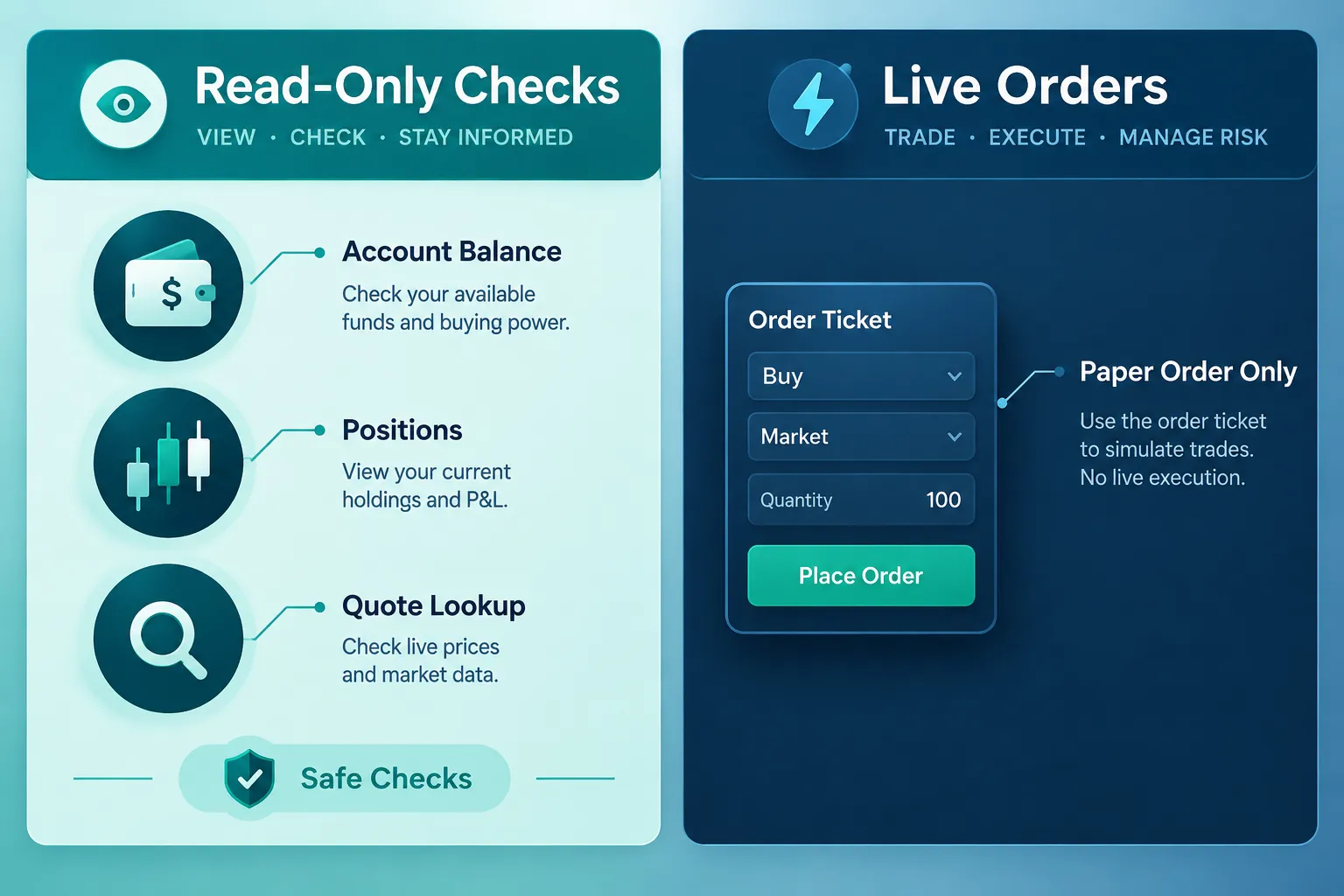
Alpaca’s docs use one verification prompt: “What is my Alpaca account balance and buying power?” If you get account details back, the server is connected. Then run the rest in order:
| Prompt | What a healthy answer looks like |
|---|---|
| ”What is my Alpaca paper account balance and buying power?” | Figures that match your paper dashboard (about $100,000 on a new account) |
| “Do I have any open positions?” | An empty list on a fresh account |
| ”What is the latest quote for AAPL?” | Bid, ask and a timestamp from the last few seconds during market hours |
| ”Show my orders from this week.” | An empty list, or the paper orders you placed |
| ”What are the market hours today?” | Today’s open and close from the market clock tool |
What to check in the answers:
- Does Claude name the tool it called? If it answers a quote question without calling a tool, it is guessing from memory. Ask it to call the Alpaca tool and show the timestamp.
- Do the numbers match the dashboard? The dashboard is the source of truth, not the chat.
- Is the quote stale? Free accounts get real-time IEX quotes only. IEX is one exchange, so its quote is one venue’s view, not the full consolidated feed. That is a data plan limit, not a bug.
Common mistake: skipping straight to an order because the balance check “obviously” worked. A broken data feed on paper will be just as broken on live. Treat this stage like checking mirrors before you pull out of a parking spot: boring, and the reason you do not hit anything.
How Do You Place a Paper Order Through Alpaca MCP?
You type a plain request with the symbol, side, quantity and order type, read Claude’s summary of the order before it runs, then confirm the fill in your Alpaca paper dashboard. The order goes through the same Trading API as a live order; only the account is simulated.
Alpaca’s docs list prompts like “Buy 10 shares of AAPL at market price” and “Place a limit order to sell 50 shares of TSLA at $350.” Start smaller than that.
- One share, one symbol. “Buy 1 share of SPY at market in my paper account.”
- Read the confirmation. Check whether your client asks before it runs a tool, and keep that prompt on. Check symbol, side, quantity and order type every time. Alpaca’s docs say to review AI-suggested orders before confirming.
- Check the dashboard. Find the order in the paper dashboard and confirm the fill price and time.
- Try a limit order next. “Place a limit order to buy 1 share of SPY at $X.” Then ask Claude to cancel it. Testing cancel is as important as testing buy.
- Try a bracket. The
place_stock_ordertool supports brackets. Ask for a 1-share buy with a stop and a target, then confirm both child orders appear.
What to log every time:
- The exact prompt you typed
- The tool Claude called and the parameters it sent
- Order type, fill price and time
- Whether the result matched what you meant
That log is the difference between an experiment and a process. Our breakdown of Claude trading bots covers where Claude helps and where it fails once you move past single orders.
A worked example of where prompts go wrong
Say you type “buy $500 of NVDA.” Claude has to decide between a notional order and a share-quantity order, and between market and limit. If it picks a market order at the open, your fill can land well away from the last quote you saw. On paper that costs nothing. On live it is a real cost.
The fix is to say exactly what you mean: “buy 2 shares of NVDA with a limit at $X, day order.” Precise prompts produce precise tool calls.
What Does Paper Trading Through Alpaca MCP Not Tell You?
Paper results flatter you. Alpaca’s paper trading docs list what the simulator does not account for:
- Market impact of your orders
- Information leakage of your orders
- Price slippage due to latency
- Order queue position for non-marketable limit orders
- Price improvement
- Regulatory fees
- Dividends
The docs also say paper accounts do not send order fill emails and that you cannot change the balance after creation. To reset, you open a new paper account from the dashboard and generate new keys for it.
Two practical consequences for an AI-driven setup:
- Latency is real on live. A chat round trip plus a tool call can take seconds. On paper the fill uses the quote at that moment with no slippage model. On live, a fast market moves while Claude is still writing its summary. Our piece on paper trading slippage shows how to estimate the gap.
- Data quality changes the answers. Alpaca’s Basic plan is free with real-time IEX data, 30 websocket symbols and 200 historical API calls a minute. Algo Trader Plus is $99 a month with all US exchanges and 10,000 calls a minute, per Alpaca’s market data docs. If Claude is screening “most active stocks” on the free feed, it sees one venue’s slice. Our Alpaca API pricing guide covers when the upgrade is worth paying for.
Decision rule: if your strategy depends on precise entries, test with limit orders only, and budget for the data plan before you trust any paper P&L.
What Is the Pre-Flight Checklist Before You Trust Alpaca MCP With Live Money?
Run five checks before any live key goes into the config: key type, paper flag, toolset scope, position cap and a backed-up config. Skipping one is how a “test” turns into a real trade.
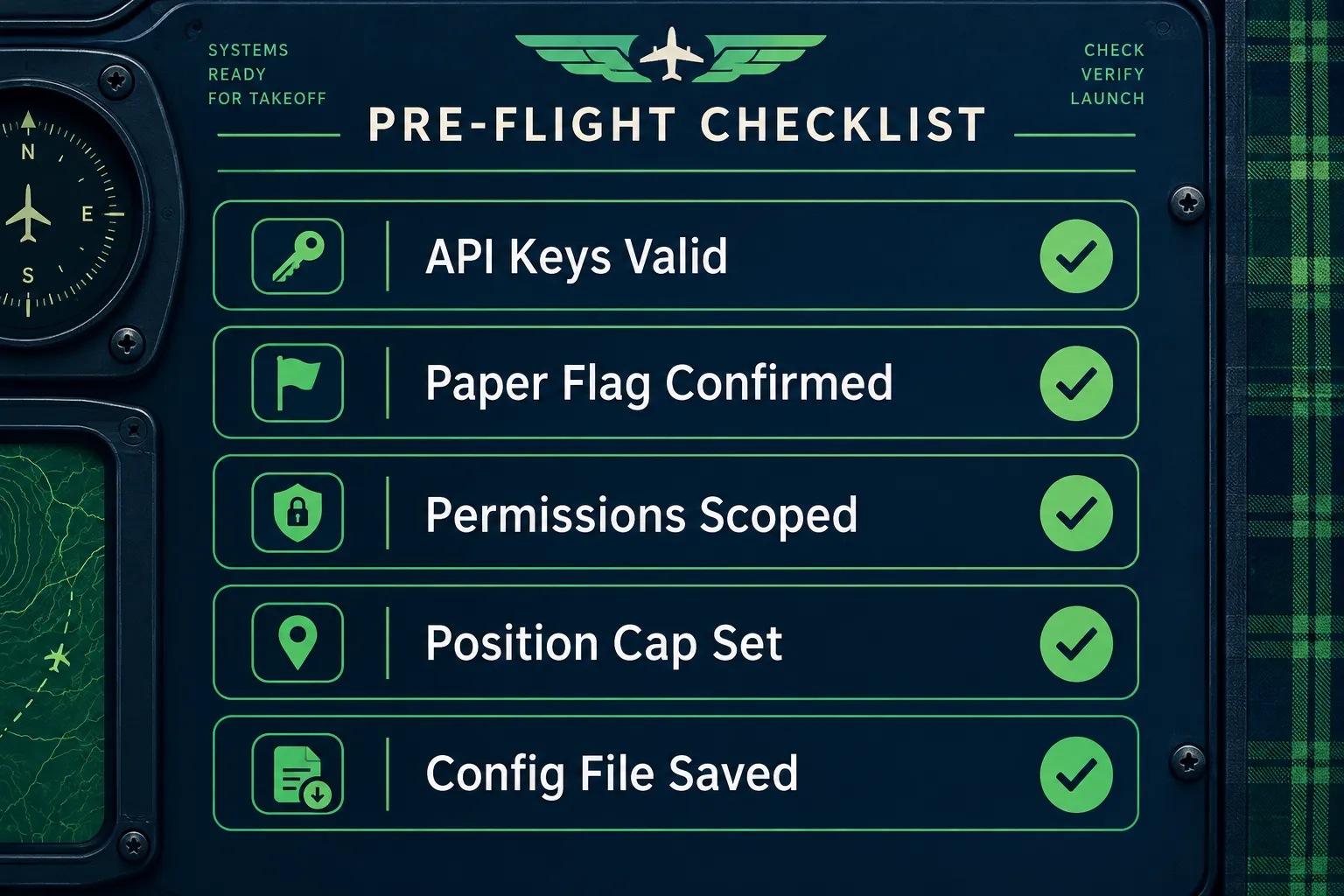
| Check | What to look for | Fix if it fails |
|---|---|---|
| Key type | Paper keys while testing, live keys only after weeks of logs | Regenerate in the correct dashboard |
| Paper flag | ALPACA_PAPER_TRADE absent or "true" on paper | Set it explicitly so the intent is visible |
| Toolset scope | Only the toolsets you use are enabled | Use ALPACA_TOOLSETS to drop the rest |
| Position cap | A written max size per trade and per day | Decide before the session, not during it |
| Config backup | A copy of the working JSON outside the app folder | Copy it before every edit |
Two more rules from Alpaca’s own docs:
- Never paste API keys into chat. Alpaca’s docs say to configure them only in the client’s
envblock or your operating system’s secret store. - Keep it local. The README’s HTTP transport notes say binding to
0.0.0.0“does not provide authentication” and the package does not configure MCP OAuth. Do not expose the server to the internet.
Why a chat window needs an external kill switch
Claude will stop when you tell it to stop, but only if you are watching. The account-level controls are yours: cancel all orders from the dashboard, revoke the keys, or remove the server from the config. Know where each of those buttons is before your first live order. Our guide to AI trading agent risks explains why the kill switch has to live outside the agent.
Why isn’t Alpaca connecting to Claude? The three usual causes, in order: a JSON syntax error, mismatched or revoked keys, and Claude Desktop not being fully restarted. Check those before assuming anything deeper is wrong.
Alpaca MCP vs Robinhood MCP vs TradingView MCP: Which Fits?
Alpaca MCP is the one to pick if you want Claude to place orders on a paper account first, because it is official, local, open source and paper by default. Robinhood’s official Trading MCP trades real money in a separate agent account. TradingView’s official MCP server is a research and alerts layer with no order tools listed.
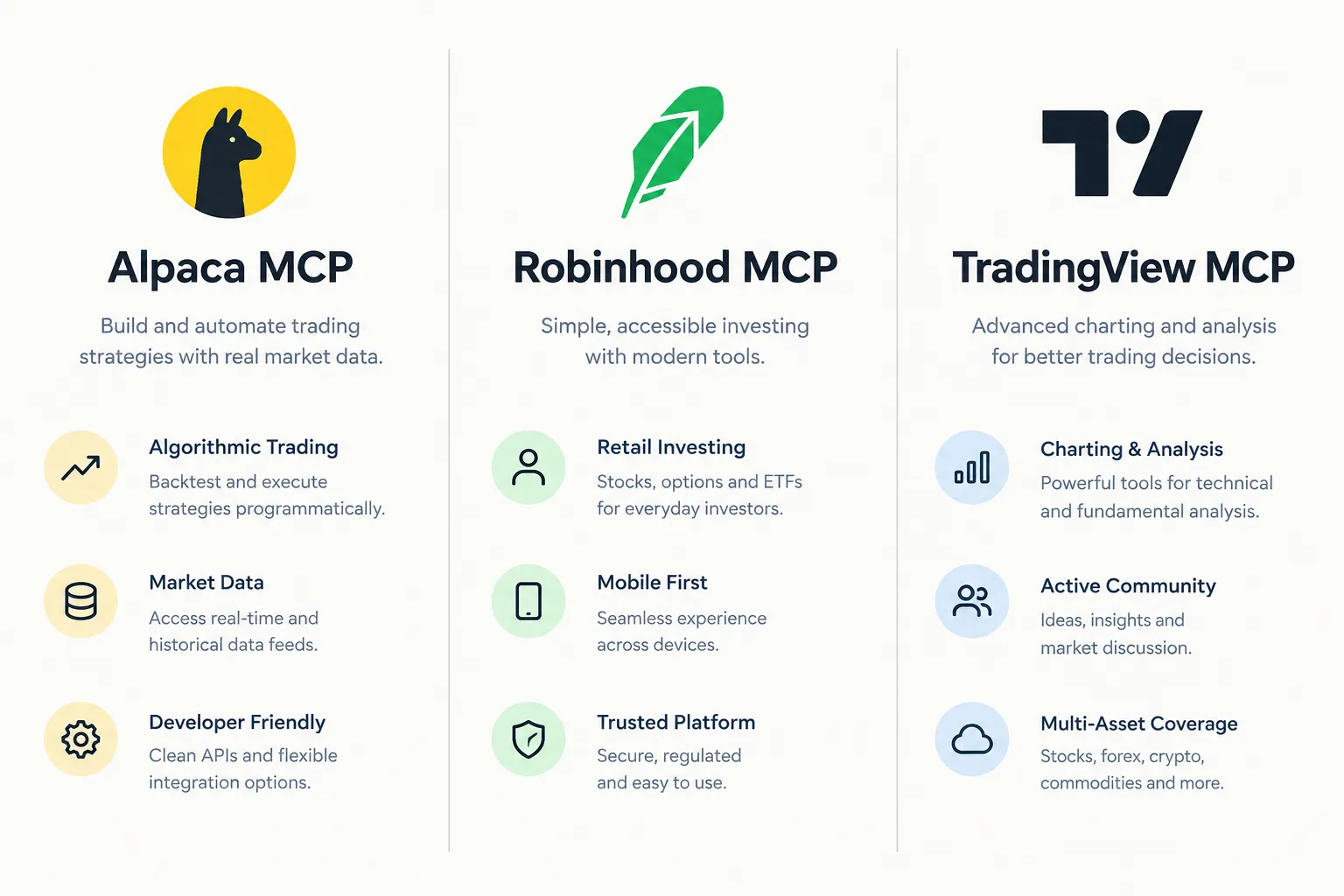
| Factor | Alpaca MCP | Robinhood Trading MCP | TradingView MCP Server |
|---|---|---|---|
| Built by | Alpaca (open source on GitHub) | Robinhood (hosted) | TradingView (hosted, public beta) |
| Where it runs | Your machine via uvx | Remote, sign in with Robinhood | Remote, sign in with TradingView |
| Paper trading | Yes, the default | No paper mode; trades go to a real MCP account | Not a trading tool |
| Places orders | Yes | Yes, only in the dedicated MCP account | No order tools listed in the launch post |
| Safety switch | ALPACA_TOOLSETS, paper flag | Trade approvals (off by default for MCP accounts) | Read and watchlist or alert actions only |
| Account needed | Free paper account | Primary individual account in good standing | Essential plan or higher |
The Robinhood and TradingView columns come from Robinhood’s external agent onboarding help page and TradingView’s MCP launch post, both checked in 2026. We cover each in full in our Robinhood MCP setup guide and our TradingView MCP guide.
Decision rule: use Alpaca’s server to learn how an AI agent behaves with orders, because mistakes cost nothing on paper. Use TradingView MCP for research and alerts. Treat Robinhood MCP as a live-money product from day one. If you are still weighing Alpaca as a broker, our sister site’s Alpaca review covers account types and fees.
Frequently Asked Questions
What is Alpaca MCP?
Alpaca MCP is Alpaca’s official Model Context Protocol server that connects Claude and other MCP clients to Alpaca’s Trading and Market Data APIs. It runs on your own machine through the uvx command. Once connected, Claude can check balances, pull quotes and place orders from chat.
Is Alpaca MCP free?
Yes, the Alpaca MCP server is open source and a paper trading account is free. Paper-only accounts get free real-time IEX data. Full market data is Alpaca’s Algo Trader Plus plan at $99 a month, and Claude’s own plan limits are separate.
Does Alpaca MCP trade with real money?
Not by default. The ALPACA_PAPER_TRADE setting defaults to true, so the server uses your paper account unless you set it to false and supply live keys. Keep it on paper until you have weeks of logged fills.
How many tools does the Alpaca MCP server have?
Alpaca’s GitHub README lists 72 tools in 2026, covering account, orders, positions, watchlists, stock, crypto and options data, news, fixed income, locates and docs lookup. Alpaca’s docs page still says 65 because it predates the newer tools. Use ALPACA_TOOLSETS to expose only the ones you need.
Why does my old Alpaca MCP tutorial no longer work?
Alpaca MCP version 2 is a complete rewrite, and none of the V1 tools exist in V2. The old .env file and init command are gone, and credentials now go only in the client’s env block. Remove the old config, restart your client and start a fresh chat.
Can I use Alpaca MCP from Claude on my phone or in ChatGPT?
Not safely with the official package. Both need a remote MCP server, and Alpaca says the package does not configure remote MCP authentication, so you should not expose it to the internet with your keys. Use Claude Desktop, Claude Code, Cursor or VS Code locally.
How do I make Alpaca MCP read-only?
Set ALPACA_TOOLSETS in the env block and leave out the trading toolset, for example account,assets,stock-data,news. Restart your client and ask Claude to list its Alpaca tools to confirm no order tools appear. Add trading back when you are ready for paper orders.
Our Take
Start on paper, and stay there for weeks, not a day. Alpaca MCP is the cleanest way to put Claude in front of a broker because it is official, it runs on your machine and it defaults to paper. That safety is only real if you keep it: paper keys, a read-only toolset in week one, a confirmation on every order and a log of every fill.
The schema rewrite in version 2 is also a warning about the whole category. These tools change fast. Pin what works, re-read the README before you upgrade, and judge the setup by your logs, not by how smart the chat sounds. Systems beat clever prompts. For more broker connections and bot breakdowns, start at AI Stock Trading Bots.
Built something on Alpaca’s MCP server with a real paper log? Send it to us and we will run it through the same checks.
Stay alpha.
The FullStack Alpha research desk tests AI trading bots on paper and live accounts. Reviewed and edited by Jay Rocco, Founder and Editor.
