

The FullStack Alpha research desk tests AI trading bots on paper and live accounts. Reviewed and edited by Jay Rocco, Founder and Editor.
By FullStack Alpha Editorial Team | Reviewed by Jay Rocco, Chief Editor
TradingView MCP is TradingView’s official MCP Server, launched in public beta on September 16, 2026, and it lets Claude pull TradingView quotes, price history, Screener results, fundamentals, news, filings and calendars, and manage your watchlists and alerts, inside a normal chat. To connect it, copy https://mcp.tradingview.com/mcp, add it in Claude under Settings, Connectors, Add custom connector, then sign in to TradingView and approve access. It requires an Essential or higher paid plan, there is no API key to paste, and TradingView says the beta uses delayed market data and may limit requests per day. The launch post lists no broker or order tools, so the official TradingView MCP is a research and alerts layer, not an auto-trader.
Key insights
- Official link:
https://mcp.tradingview.com/mcp, per TradingView’s MCP Server launch post. Works with any MCP client; TradingView names Claude web, desktop, mobile and Claude Code. - Plan: Essential or higher. TradingView’s pricing page showed Essential at a special price of $12.95 a month in 2026; that is a promotional price, so check it on the day you buy.
- Beta limits in TradingView’s words: “tool list is limited, market data is delayed, and some MCP tools may not work as smoothly as expected,” and it “may limit the number of requests per day.”
- No trading: the tools cover data, research, watchlists and alerts. Order execution needs a separate broker connection.
- Community servers are a different thing. GitHub projects that borrow the name are unofficial, often run on your machine, and are not reviewed by TradingView.
What Is the TradingView MCP and Which Version Do You Need?
TradingView’s official MCP Server is a hosted connector TradingView built and runs. TradingView describes it as “a direct, secure connection between your TradingView account and the AI platform you already use.” You sign in with your TradingView account, approve access, and your assistant can call a fixed set of TradingView tools. Community MCP servers for TradingView on GitHub are different: independent developers wrote them, they usually run on your own machine, and quality and safety vary.
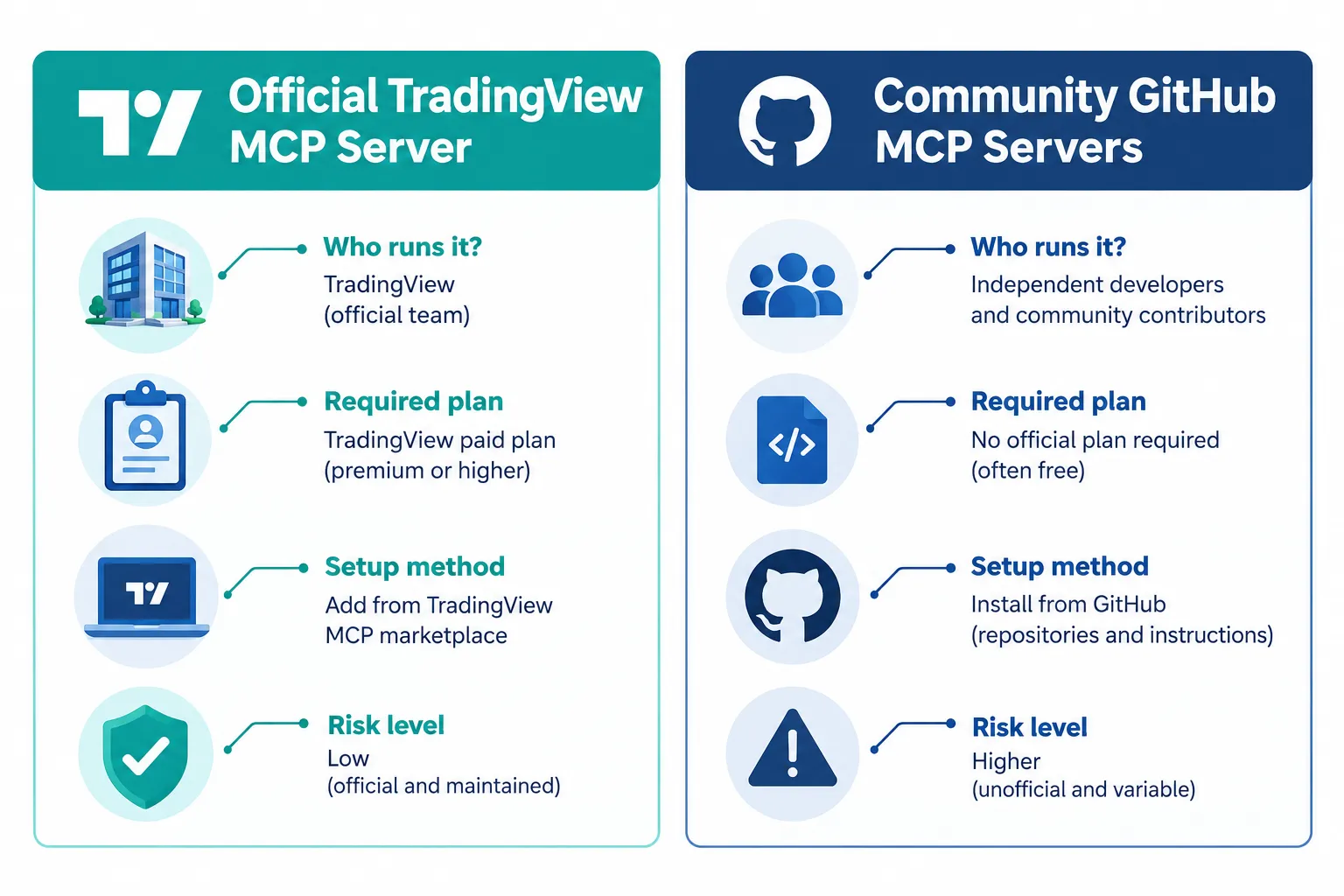
| Category | Who runs it | Plan required | Setup | Order execution | Risk level |
|---|---|---|---|---|---|
| Official MCP Server | TradingView | Essential or higher | Add connector link, sign in, approve | No order tools in the launch post | Lower; scoped by TradingView |
| Community MCP servers (GitHub) | Independent developers | Varies by project | Clone a repo, install locally, configure | Varies; unverified claims | Higher; runs on your machine with your session |
What is the official server?
It is TradingView’s own hosted tool for assistants like Claude and any other MCP-compatible client. You never download anything. TradingView’s analogy: MCP is “an open standard that lets AI assistants use outside tools and data safely, the way a USB-C port lets any device talk to any accessory.” TradingView provides “the numbers, the news, and the actions,” and “your assistant does the thinking.”
What are the community servers on GitHub?
They are third-party projects, usually by individual developers, that wrap TradingView data or drive the TradingView app on your computer and expose it as an MCP server you run locally. Some claim more than the official server does, such as automating the chart on your screen. Treat every claim as unverified until you have read the code, because TradingView is not reviewing it for you. Alex Hitt’s video “TradingView MCP GitHub Explained: Local AI Chart Automation with Claude” shows what one of these local setups looks like.
Decision rule: if you want a clean, low-friction research setup, use TradingView’s official server. If you are a developer who can audit code and you need something the official server does not offer, a community server is a trade-off you make with your eyes open.
Can Claude Place Trades Through the TradingView MCP?
No. TradingView’s MCP launch post lists quotes, price history, the Screener, fundamentals, news, filings, calendars, watchlists and alerts. It lists no broker balances, positions or order tools. Claude can read the market and set alerts; it cannot trade your account through this connector.
That distinction matters because people hear “AI connected to my trading platform” and assume the loop is closed. It is not. The connector gives Claude eyes on the market, not hands on your account.
If you want execution, it lives in a separate system:
- A broker MCP. Alpaca’s MCP server can place orders and defaults to paper trading. Robinhood’s Trading MCP trades real money in a dedicated account. We compare all three connectors below.
- TradingView alerts to a broker. An alert fires a webhook to a bridge or your own server, which places the order. Our guide to TradingView automated trading covers the bridges that reach brokers.
Conflating “AI can read my charts” with “AI can trade my account” is how people build a system with no risk controls in the middle.
How Do You Connect Claude to the TradingView MCP Step by Step?
You connect Claude to TradingView MCP in four steps from TradingView’s launch post: copy the link, add it as a custom connector in Claude, sign in to TradingView and approve access, then ask your first question. TradingView says getting started “takes about a minute” if your plan is already Essential or higher.
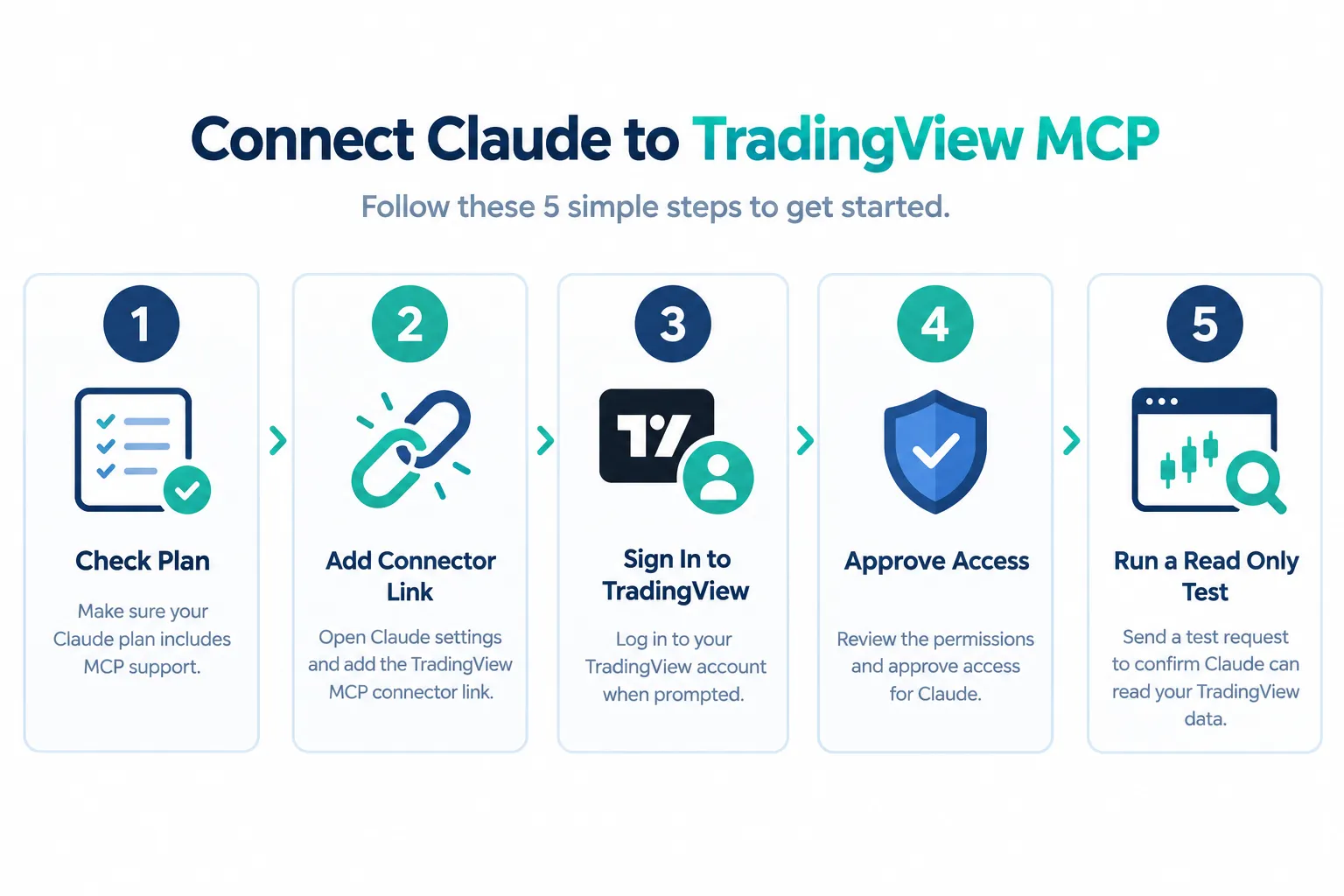
- Confirm your TradingView plan. You need Essential or higher. Check your subscription page before you set anything up.
- Copy the official link:
https://mcp.tradingview.com/mcp. Do not paste a random GitHub link here and call it the same thing. - Add it as a custom connector in Claude. TradingView’s instruction: “in Claude, go to Settings, Connectors, Add custom connector, then paste the link there.” In Claude Code, add it as a remote HTTP MCP server with the same URL.
- Sign in to TradingView and approve access. You log in on TradingView’s own page; no API key is created or pasted anywhere. Read what you are approving.
- Ask a verifiable first question. For example, “What is the latest close and next earnings date for AAPL, from TradingView data?” Then check the answer on TradingView itself.
Which TradingView plan do you need?
Essential or higher. TradingView’s launch post says the server “is available now to all users on Essential or higher-tier plans.” The pricing page listed these monthly special prices in 2026:
| Plan | Monthly special price shown in 2026 | MCP access |
|---|---|---|
| Basic | $0 | No |
| Essential | $12.95 | Yes |
| Plus | $29.95 | Yes |
| Premium | $59.95 | Yes |
These are promotional prices on the page the day we checked, so confirm the current price before you buy. Higher tiers matter for charting features, not for whether MCP works.
How do you test that the connection works?
Ask for something you can check, then check it. If Claude answers a price question without calling a TradingView tool, it is answering from memory, and the connector is not firing. Good first tests:
- “Using TradingView, what is AAPL’s last price and when does it report next?”
- “List the symbols in my TradingView watchlist called X.”
- “Which of my TradingView alerts fired this week?”
Common error: pasting the link into the wrong field so the sign-in step never appears. If you never see a TradingView login page, you did not add it as a custom connector. Lewis Jackson Investing’s video “How To Connect Claude to Trading View (Insanely Cool)” walks through a Claude and TradingView connection on screen; check its publish date, because anything posted before TradingView’s September 16 launch post cannot show the official server.
What Can Claude Do With TradingView Data?
Once TradingView MCP is connected, Claude can pull quotes and price history, run the Screener, read fundamentals, news, earnings call transcripts and SEC filings, check economic and earnings calendars, and create watchlists and alerts, all from one conversation. None of it touches a broker account.
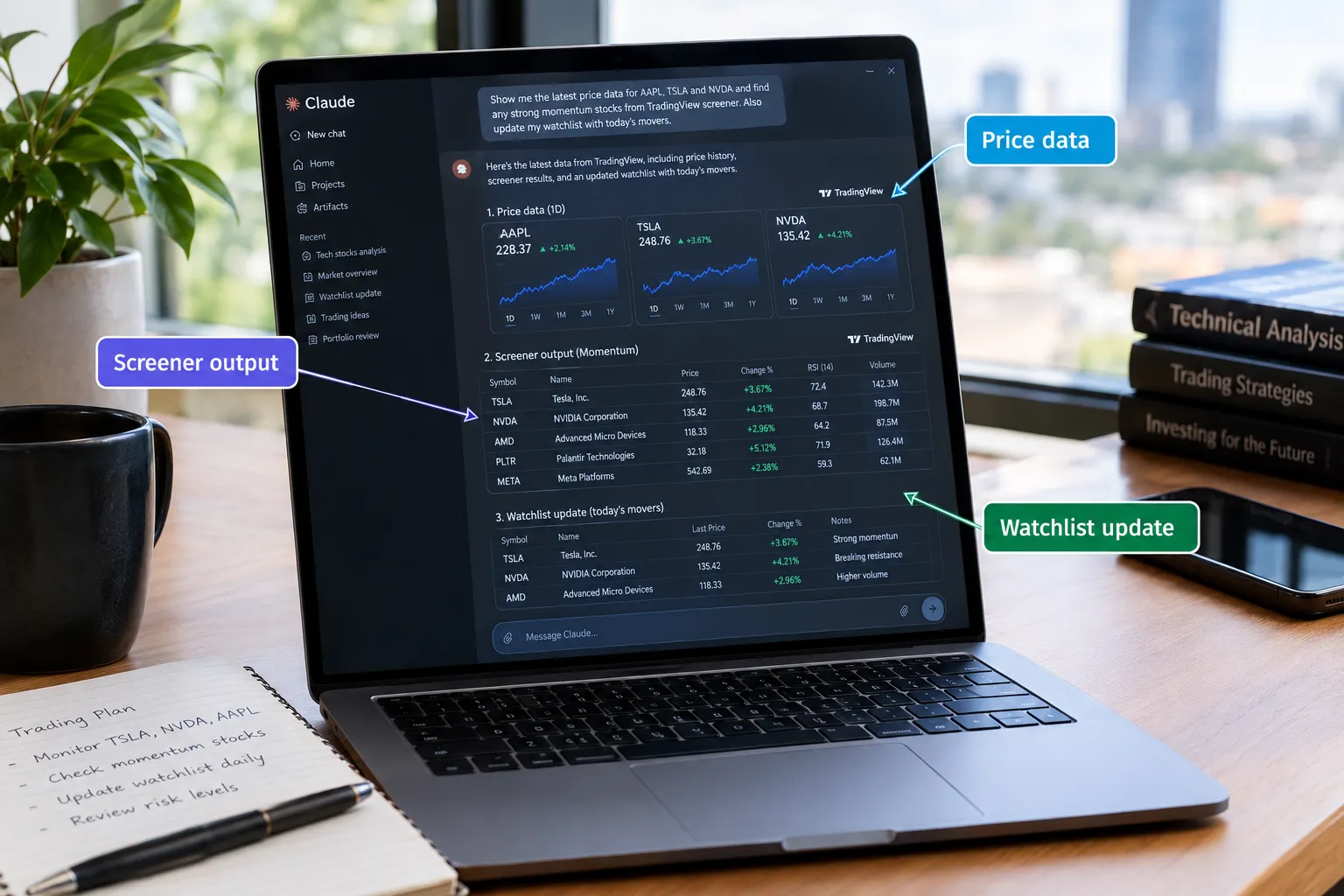
TradingView’s launch post lists these use cases:
- Symbol briefings. Price action, technical indicators, news, analyst consensus and earnings dates for one symbol in one view.
- Screen, explain, save, alert. Describe a setup in plain language; the assistant runs the Screener, explains why each result made the cut, saves the results as a watchlist and sets the alerts you asked for.
- Earnings prep. Upcoming earnings for a watchlist with expected EPS and revenue and how the stock moved after past reports.
- Filings without the reading. Earnings call transcripts, 10-Ks, 10-Qs and 8-Ks are available as documents, and TradingView suggests asking for quotes, “not paraphrase.”
- Macro context. Economic calendar events and economic data series, such as CPI and policy rates, across countries.
- Alert post-mortems. The assistant reads your alert log, checks price action after each trigger and finds the news that explains it.
- Side-by-side comparisons of return, drawdown, valuation and margins across stocks.
- Data for code. In Claude Code, TradingView says the same connection becomes a data source for scripts, with “no API keys, no CSV exports.”
Three prompts that use it well
These are adapted from TradingView’s own examples:
- “Find S&P 500 stocks with P/E below 15, revenue growth above 10%, dividend yield above 2% and RSI under 40. One line each on why they are down this month. Save them to a watchlist called Value dips.”
- “Which stocks on my watchlist report earnings in the next 10 days? For each, give consensus EPS and revenue and how the stock moved the day after each of the last four reports.”
- “Which of my alerts fired in the last 7 days? For each, show the price action over the next two sessions and the headline that best explains the move.”
This is where the connector earns its keep: it shortens the time between a question and an answer built on TradingView’s data instead of a model’s memory. It does not replace your judgment on the trade.
Using the connector in Claude Code
TradingView says that in Claude Code “the same connection turns TradingView into a data source for your scripts,” and gives the example: “Pull two years of daily BTCUSDT bars and monthly US CPI, compute the rolling 90-day correlation and plot it.” That is a real time saver for research notebooks, with two cautions:
- Delayed data stays delayed. Fine for a two-year correlation study, wrong for anything that sizes a live order.
- Write the result down. Ask Claude to save the computed series and the code to files in your project, so the analysis can be rerun and checked without the connector, and so a later beta change does not erase your work.
What Does a Daily TradingView MCP Routine Look Like?
A useful routine is short, repeatable and ends with a human decision. Here is one built from TradingView’s own suggested prompts, mapped to the trading day:
| When | Prompt pattern | What you get |
|---|---|---|
| Before the open | ”Which high-importance US data releases are scheduled today, and what moved my watchlist overnight?” | Macro calendar plus overnight movers on your list |
| Before the open | ”Show me US tech stocks breaking out on rising volume that are within 3% of a 52-week high.” | A short screen to review, not a buy list |
| Midday | ”Which of my alerts fired this morning, and what is the headline behind each?” | Context for every trigger |
| After the close | ”For each alert that fired today, what did price do afterward?” | A post-mortem you can log |
| Weekly | ”Which stocks on my watchlist report earnings in the next 10 days?” | An earnings plan for the week |
| Weekly | ”Which US stocks go ex-dividend in the next two weeks with a yield above 4%?” | Income names to review |
The discipline is in the last column. Every output is something you review and log, not an order. Keep a running note of which prompts produced useful answers and which produced noise, and cut the noisy ones after two weeks. A routine you trim is a routine you keep.
Because the beta may cap requests per day, front-load the prompts that matter most. A morning briefing and an evening post-mortem are worth more than twenty midday screens.
What Are the Limits and Risks of the TradingView MCP?
The biggest limit is that TradingView MCP is a beta. TradingView says it ships “a scoped version: tool list is limited, market data is delayed, and some MCP tools may not work as smoothly as expected,” and that “we may limit the number of requests per day.” TradingView does not publish a per-minute request number in the launch post, so treat any specific figure you see elsewhere as unverified.
What does beta mean for rate limits and data?
- Rules can change. The tool list, limits and behavior can shift between versions. A workflow that works this month may need adjusting next month.
- Daily caps can stop a session. If you run many screens and comparisons back to back, expect to hit limits; space out heavy work.
- Delayed data is not an order price. Never use a connector answer as a live quote for an order. By the time Claude answers, the number may be stale even before you count the delay.
How to keep a workflow working through beta changes
Because the tool list and limits can change, build a small habit around it:
- Keep one known-answer test. Pick a question whose answer you can check in seconds on TradingView, such as a symbol’s previous close and next earnings date. Run it at the start of each week. If the answer is wrong or the tool is missing, you know before you rely on anything else.
- Save the prompts that work. Keep your best prompts in a plain text file. If a tool is renamed or removed, you can see exactly which step broke.
- Keep a manual fallback. Every answer the connector gives can be checked in TradingView itself. If the beta is down or capped for the day, your routine should still run by hand.
- Read TradingView’s updates. TradingView asked beta users for feedback in a Reddit thread linked from the launch post, so watch that thread and the TradingView blog for changes.
None of this is complicated. It is the difference between a research tool you depend on and one you trust.
What extra risks come with community servers that run on your computer?
Running someone else’s code locally means that code can do more than fetch quotes if it is written poorly or maliciously. A community server with access to your TradingView session could, in principle, do things you never approved. That is the same logic that applies to any unreviewed script.
FINRA’s 2026 oversight report section on GenAI lists the agent risks regulators are watching, including “AI agents acting autonomously without human validation and approval,” agents that “may act beyond the user’s actual or intended scope and authority,” and agents on sensitive data that may “store, explore, disclose or misuse” it. Those apply double to a tool only its author has reviewed.
What Safety Checklist Should You Follow Before Connecting?
Treat the connection the way you would treat giving a new employee system access: start narrow, watch what happens, expand slowly.
- Read before you approve. Look at what the sign-in screen asks for before you click approve.
- No keys in chat. The official flow never asks you to paste an API key into a conversation. If something asks, stop.
- No live orders through this connector. The official tools do not include them, and no prompt changes that.
- Watch the write actions. The official server can create watchlists and alerts. Check them in TradingView after the first few sessions so nothing surprises you.
- Review community code before running it. If you cannot read the repository, do not run it.
- One account at a time. Keep a single TradingView account on the connector until you trust the workflow.
This is systems over hacks in practice. A checklist you follow beats a clever workaround you only half recall.
How Does the TradingView MCP Fit Into an AI Trading Bot?
TradingView MCP belongs on the research and alerting side of a trading system, not the execution side. If you are building something closer to an automated bot, order placement has to live in a separate layer connected to a broker, with its own risk limits.
A clean three-layer design:
| Layer | Tool | Job |
|---|---|---|
| Research | Claude plus TradingView’s MCP Server | Screens, briefings, filings, watchlists |
| Signal | TradingView alerts or Pine Script strategies | A rule that fires at a defined condition |
| Execution | A broker API, broker MCP or webhook bridge | Places the order with size and loss limits |
The signal layer is where Pine Script comes in. Our Pine Script tutorial gets you to a first indicator, and our Pine Script strategy guide turns one into a backtest that can fire alerts.
If the signal layer uses TradingView webhooks, know the hard rules from TradingView’s webhook docs: only ports 80 and 443, a three-second timeout, no IPv6, two-factor authentication required, and webhooks “may occasionally fail to reach the specified URL.”
Keeping the layers separate is not a limitation. It is risk management: the model that summarizes a 10-Q should not also be the thing that can size a position. Our breakdown of what a Claude trading bot can build and where it fails goes deeper on that split.
TradingView MCP vs Alpaca MCP vs Robinhood MCP: Which Should You Use?
Use TradingView MCP for research and alerts, Alpaca’s MCP server to learn order handling on paper, and Robinhood’s Trading MCP only when you are ready for an agent to trade real money in a capped account. They solve different problems, and many traders will run more than one.
| Factor | TradingView | Alpaca MCP server | Robinhood Trading MCP |
|---|---|---|---|
| Built by | TradingView (hosted, beta) | Alpaca (open source, runs on your machine) | Robinhood (hosted) |
| Main job | Data, screens, filings, watchlists, alerts | Account data and orders | Account data and orders |
| Places orders | No order tools listed | Yes | Yes, only in the MCP account |
| Paper trading | Not a trading tool | Yes, the default | No |
| Sign-in | TradingView account, no API key | Alpaca API key and secret in your client config | Robinhood sign-in |
| Cost to connect | Essential plan or higher | Free paper account | No connection fee listed |
Decision rule: if you only want better research, stop at TradingView’s server. If you want to see how an AI handles orders, add Alpaca on paper next. Move to a live-money agent only after weeks of logs show it does what you mean. Our guides to the Alpaca MCP setup and the Robinhood MCP cover each in full.
What Did Creators Show With Claude and TradingView, and What Did They Skip?
Creators have posted several Claude and TradingView builds. Humbled Trader’s “I Built an AI Trading System With Claude + TradingView,” Miles Deutscher Finance’s “How To Connect Claude + TradingView (Actually Insane)” and Lewis Jackson Investing’s setup video all show the appeal: plain-language research and alerts in minutes.
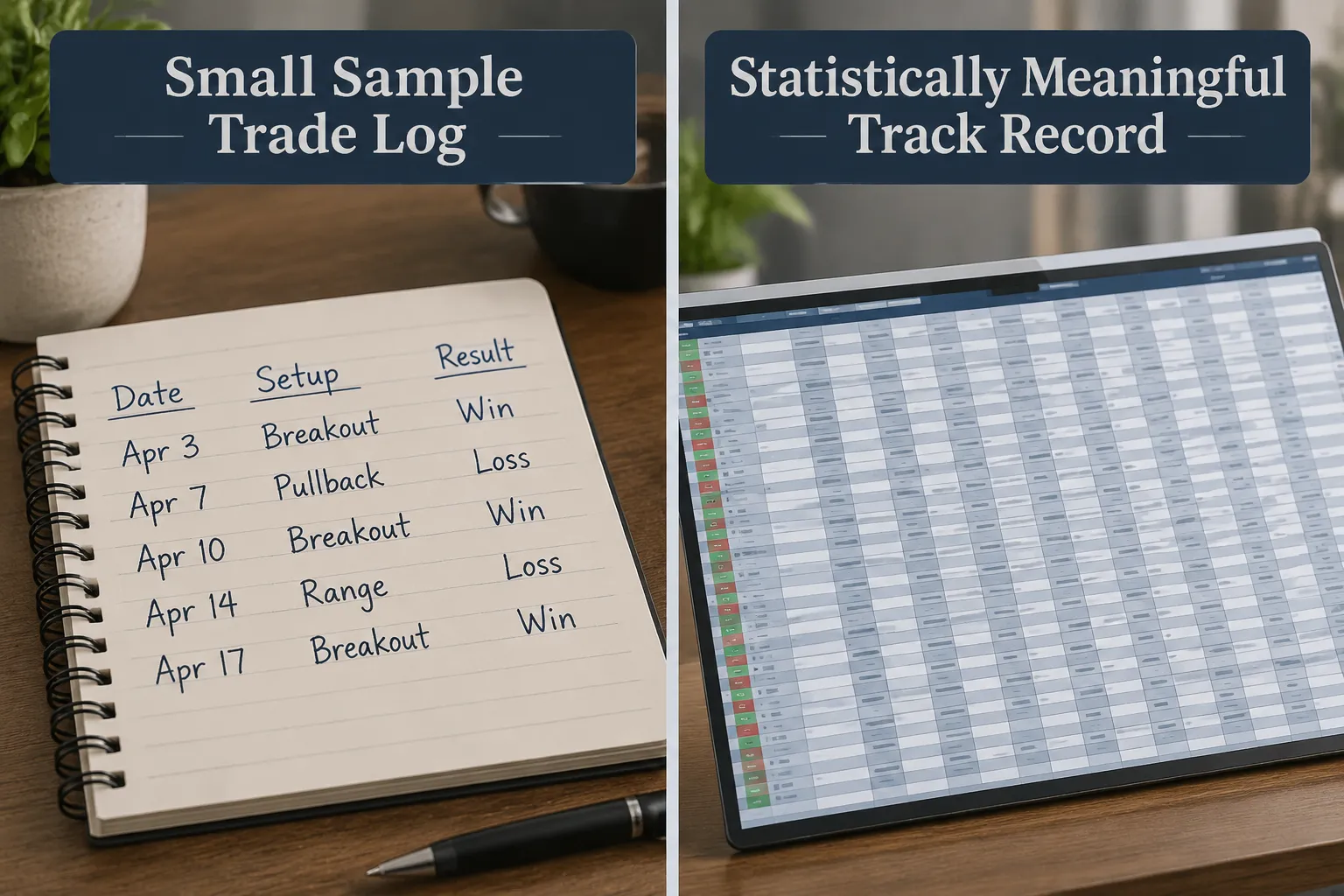
What these videos usually skip, and what you should ask before copying any result:
- Sample size. A handful of trades on video is not an edge. A small sample can look great or terrible on a few lucky entries. Look for months of trades across different markets.
- Costs and slippage. Did the results include commissions, spreads and the gap between alert price and fill price?
- Which server? Was it TradingView’s official server, a community server, or a custom script? Videos posted before September 16, 2026 cannot show the official one.
- Who placed the orders? If a person clicked the trades, the “AI system” is a research assistant, which is fine, but say so.
- Full trade log. Every entry and exit, not a highlight reel.
Our critique: process over prediction means you would want any creator’s run repeated across months and market regimes, with every trade logged, before drawing a conclusion about whether Claude plus TradingView’s server produces an edge or produced a good week. Our guide to AI trading agent risks covers the checks to run before trusting any agent with money.
Frequently Asked Questions
What is TradingView MCP?
TradingView MCP is TradingView’s official MCP Server, launched in public beta on September 16, 2026. It connects Claude and other MCP clients to TradingView quotes, price history, the Screener, fundamentals, news, filings, calendars, watchlists and alerts. You add one link and sign in with your TradingView account.
Is TradingView MCP free?
No. TradingView MCP requires an Essential or higher paid plan, per TradingView’s launch post. The pricing page showed Essential at a special price of $12.95 a month in 2026, which is promotional, so check the current price before you buy.
How do I connect Claude to TradingView MCP?
Copy https://mcp.tradingview.com/mcp, then in Claude go to Settings, Connectors, Add custom connector and paste it. Sign in to TradingView when prompted and approve access, then ask a question you can verify on TradingView. There is no API key to create or paste.
Can Claude place trades through TradingView MCP?
No. The official TradingView MCP launch post lists data, research, watchlist and alert tools, with no broker balance, position or order tools. To trade, connect a broker through its own API or MCP, or route TradingView alerts to a broker with a webhook bridge.
Is TradingView MCP data real time?
No, not during the beta. TradingView says the beta uses delayed market data and a limited tool list, and that it may limit requests per day. Do not use its answers as live prices for orders.
Is a community TradingView MCP server safe?
It depends on the code and its author. Community servers on GitHub are unofficial, often run on your own machine and may use your TradingView session, and TradingView does not review them. Read the repository before running one, or use the official server.
Where do I download TradingView MCP?
There is nothing to download for the official TradingView MCP. It is a hosted server you add by link inside your AI client’s connector settings. Only community servers require cloning and installing code.
Our Take
TradingView MCP is a useful research layer, and TradingView is honest about what it is: a scoped beta with delayed data and request caps. It will not trade for you and it will not hand you an edge. What it does well is cut the noise between asking a question and getting an answer built on TradingView’s data and your own watchlists instead of a language model’s best guess.
Set it up correctly: the official link, a plan you have checked, a careful look at the approval screen, and skepticism toward any community server or video that claims more. For more AI trading connectors and bot breakdowns, start at AI Stock Trading Bots, and see our sister site’s TradingView review for the platform itself.
For a feature-by-feature profile of the platform and its alternatives, see the TradingView tool page on our directory.
Building something on TradingView’s MCP Server or an adjacent AI trading setup? Send it to us and let the trade log speak instead of the marketing copy.
Stay alpha.
The FullStack Alpha research desk tests AI trading bots on paper and live accounts. Reviewed and edited by Jay Rocco, Founder and Editor.
