

The FullStack Alpha research desk tests AI trading bots on paper and live accounts. Reviewed and edited by Jay Rocco, Founder and Editor.
By FullStack Alpha Editorial Team | Reviewed by Jay Rocco, Chief Editor
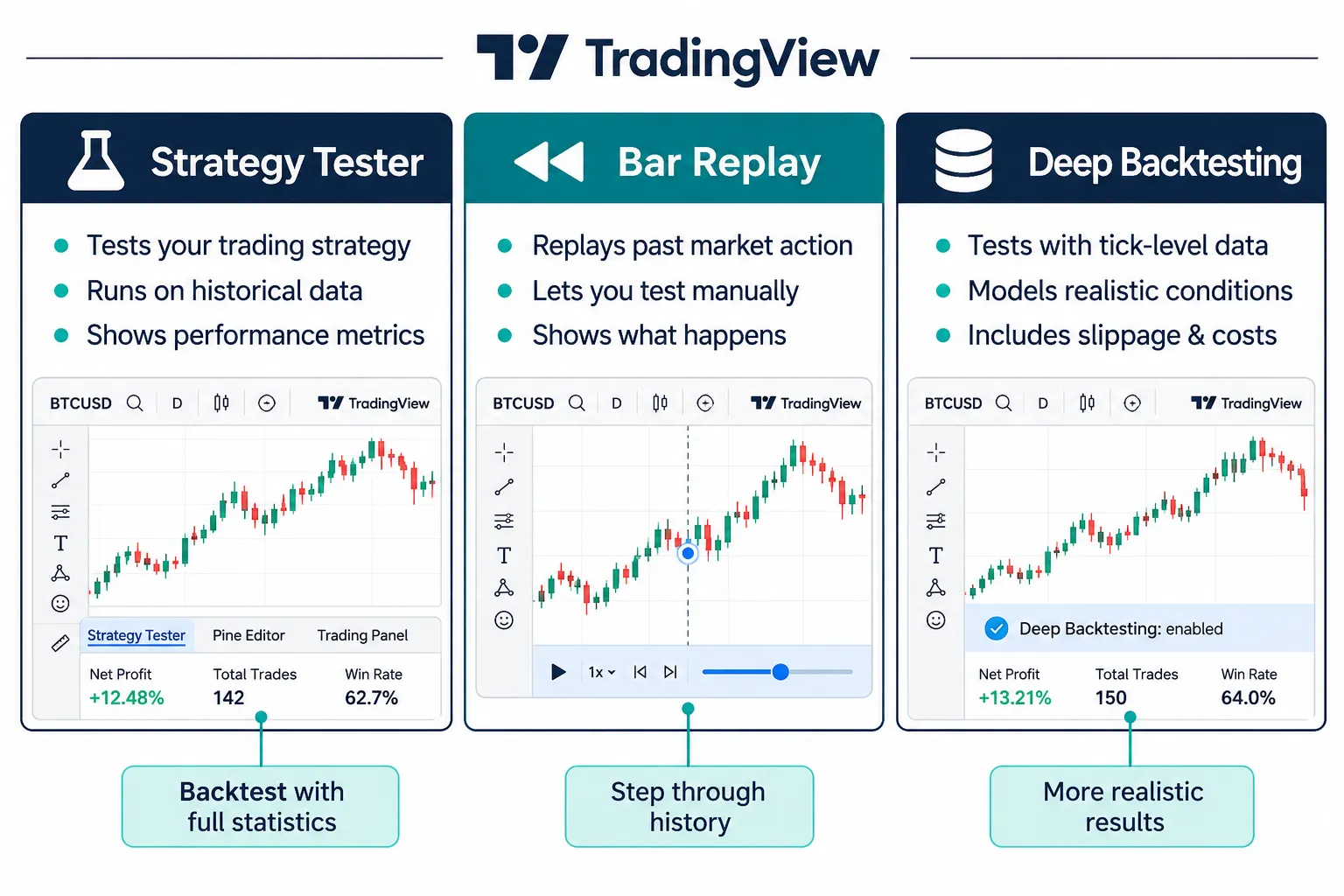
Backtesting TradingView strategies works by adding a Pine Script strategy to a chart, which makes TradingView simulate its orders on past bars and print the results in the Strategy Report. TradingView gives you three tools for the job: the Strategy Report for automated results on the bars loaded on your chart, Bar Replay for practicing by hand on hidden history, and Deep Backtesting for testing up to 2 million bars, which needs a Premium or higher plan. The results are only as honest as your settings, because commission, slippage and position size are yours to set, and TradingView’s default initial capital is 1,000,000. Five traps (repainting, missing costs, tiny samples, curve fitting and the wrong test window) explain almost every “the backtest said yes, live trading said no” story.
Key insights
- Indicators do not backtest. Only a script declared as a strategy places simulated orders and fills the Strategy Report.
- Set costs before you read anything. Commission and slippage live in the strategy’s Properties tab; slippage is added in ticks to market and stop orders.
- Know your data limit. TradingView’s pricing page lists 5K historical bars on Basic, 10K on Essential and Plus, 20K on Premium and 40K on Ultimate; Deep Backtesting goes to 2 million bars on Premium and higher.
- The emulator makes assumptions. On historical bars it fills after the bar closes and assumes a fixed path through each bar, unless you use the Bar Magnifier on Premium or Ultimate.
- A good report is a hypothesis. Paper trade it before money touches it.
For the bot side of testing, from data to broker, see AI Stock Trading Bots.
How Does Backtesting TradingView Strategies Work?
It starts with a distinction most beginners miss: an indicator and a strategy are not the same thing. An indicator draws lines and signals. A strategy places simulated orders through TradingView’s broker emulator and hands you a report on what those orders would have done. If you want numbers, you need a strategy script, not a line on the chart.
What is the Strategy Report?
The Strategy Report is what older guides call the Strategy Tester. TradingView’s Strategy Report guide says you open a strategy from the Indicators button in the top toolbar of Supercharts (or the ”/” shortcut), or pick one under Technicals, then Strategies, or from Community scripts. The report opens at the bottom of the screen automatically, and only one strategy can run on a chart at a time.
The report has four parts:
- Metrics: the default view, with the equity chart, date range, total profit and loss, max drawdown, profitable trades, profit factor, buy and hold comparison, and trade run-up and drawdown.
- Performance analysis: five tabs, Breakdown, Periodical, Benchmarking, Margin usage, and Growth and decline.
- Trades analysis: three tabs, Distribution, Streaks and Time patterns.
- List of trades: every executed trade with its number, type, date and time, price, net profit and cumulative profit.
Every round of backtesting TradingView strategies ends in this report. It runs on the bars loaded on your chart. That is the most important limit to understand before you trust a result, because a short intraday history can hold far fewer trades than you think.
What is Bar Replay and when do you use it?
Bar Replay hides future candles and lets you step through history one bar at a time, or play it forward, as if the market were live. It does not produce a win rate. It trains your eye on a setup without the benefit of hindsight, which is useful for discretionary traders and for checking that a strategy’s signals look sane bar by bar.
Replay has hard limits. TradingView’s Bar Replay troubleshooting page says it does not work with spreads built from symbol formulas, with non-traditional chart types (Renko, Kagi, Point and Figure, Range, Line Break, Volume footprint and Time Price Opportunity), or with charts converted to a non-default currency. If the replay panel does not appear after you click Replay, one of those is usually why. TradingView’s pricing page lists Bar Replay among the features of the Essential, Plus, Premium and Ultimate plans.
What does Deep Backtesting add?
Deep Backtesting removes the chart-history ceiling. TradingView’s Deep Backtesting page says it “is available for Premium and higher plan users,” uses all available historical data for the symbol “rather than being limited to the data currently loaded on the chart,” and has a limit of “up to two million bars and one million trades.” You pick a time range to test and it starts on its own. If the range holds more than 2 million bars, TradingView runs the most recent 2 million inside it.
Three practical notes from TradingView’s pages. Deep Backtesting results appear only in the Strategy Report, not on the chart. After you change a setting, click Update report. To go back to normal mode, click Reset to chart session. Intraday history is still finite, so a test range with no data returns an error.
| Tool | What it tests | Data scope | Plan |
|---|---|---|---|
| Strategy Report | Automated strategy performance | Bars loaded on the chart (5K to 40K by plan) | All plans can add strategies; bar count rises with plan |
| Bar Replay | Manual practice on hidden history | Historical bars, step or play | Listed on Essential and higher |
| Deep Backtesting | Automated performance over full history | Up to 2 million bars, 1 million trades | Premium or higher |
Can You Backtest on TradingView for Free?
Partly. The free Basic plan costs $0 and TradingView’s pricing page lists 5K historical bars for it. Deep Backtesting requires Premium or higher. Annual-billing prices on the pricing page were $12.95 a month for Essential, $29.95 for Plus, $59.95 for Premium and $199.95 for Ultimate when we checked (2026), with historical bars of 10K, 10K, 20K and 40K.
What 5K bars means in practice: on a daily chart, 5,000 bars is roughly two decades of trading days, which is plenty for a swing strategy. On a 5-minute chart, it is only a few weeks of regular sessions, which is not enough to judge an intraday system. The plan you need depends on your timeframe, not on how serious you feel.
Decision rule: for backtesting TradingView strategies on daily bars, Basic or Essential is usually enough. Intraday traders who need years of 1 to 15 minute data should budget for Premium and Deep Backtesting, or test elsewhere. Check the pricing page on the day you buy, because prices and plan features change. For a wider menu of tools, our guide to backtesting websites compares no-code options.
How Do You Backtest a TradingView Indicator Step by Step?
An indicator does not generate a report. You either rewrite it as a strategy or find a strategy version that already exists. Here is the sequence for backtesting TradingView strategies the right way.
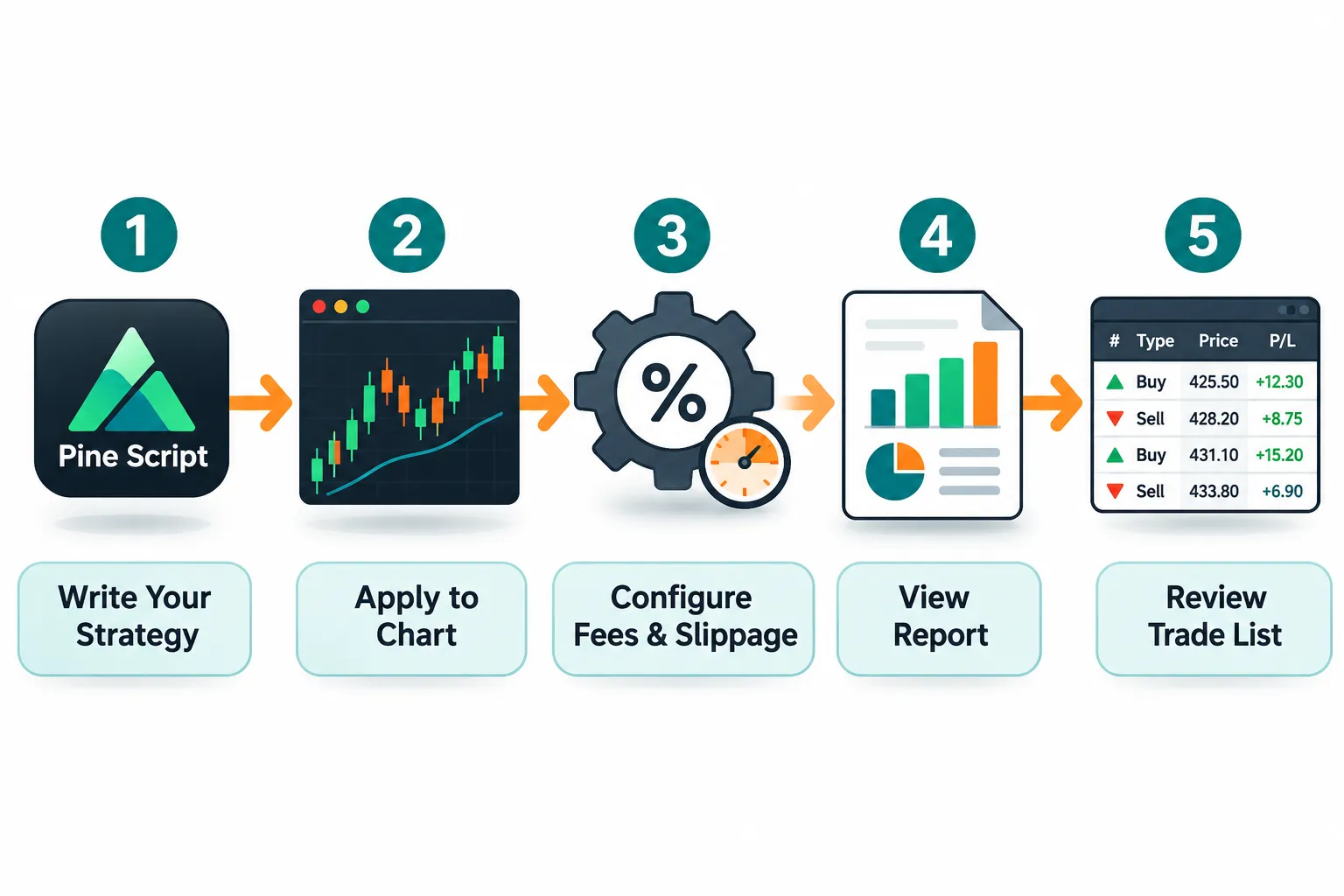
First, convert or source a strategy script. The script needs a strategy() declaration and order calls such as strategy.entry() and strategy.exit(), not just an indicator() call. Our Pine Script strategy guide walks through the conversion, and our Pine Script tutorial covers the basics if you have never written a line.
Second, add it to the chart. The Strategy Report opens automatically. Do not read it yet.
Third, set the properties. Open the strategy’s settings and go to Properties. TradingView’s strategy properties page lists what you control:
- Initial capital: defaults to 1,000,000 in the base currency. Change it to the account size you will actually trade.
- Order size: a fixed quantity, a currency amount, or a percentage of equity.
- Pyramiding: how many entries in the same direction are allowed. When disabled, only one position at a time.
- Commission: a percentage of trade value, a currency amount per contract, or a currency amount per order, charged on both entry and exit.
- Slippage: “the value in ticks to be added to the fill price of market or stop orders.”
- Verify price for limit orders: defaults to 0, meaning limits fill the moment price touches them. Set a few ticks to require price to trade through your level.
- Margin: the percentage of a position you must fund. At 25%, you can control up to 400% of equity, and a shortfall triggers a simulated margin call.
Fourth, read the Metrics tab. Net profit is the least useful number on it. Check max drawdown, total trades and profit factor first. A system with eleven trades and a flashy return is a coin flip in a nice chart.
Fifth, read the List of trades. Scroll every entry and exit. Look for fills at prices that seem impossible, especially around gaps and fast moves. This is where repainting and look-ahead bugs hide.
Worked example. A strategy shows $9,000 of profit on a $10,000 initial capital over 300 trades, with commission and slippage at zero. That is $30 per trade. Now set commission to $1 per order (so $2 per round trip) and slippage to 2 ticks on a stock with a $0.01 tick, trading 100 shares. Slippage adds about $2 per side on market and stop orders, so up to $4 per round trip. Total cost: about $6 per trade, or $1,800 across 300 trades. The result drops to roughly $7,200. If the original per-trade profit had been $8, the same costs would cut it to about $2, and one bad month would wipe it out.
What Settings Should You Use When Backtesting TradingView Strategies?
When backtesting TradingView strategies, use settings that describe the account you will actually trade, not the friendliest numbers TradingView allows. This pre-flight checklist takes five minutes and prevents most bad reports.
| Setting | Default or common value | What to set instead |
|---|---|---|
| Initial capital | 1,000,000 (TradingView default) | Your real account size, for example 10,000 |
| Order size | Varies by script | A fixed risk per trade, or a percentage of equity that matches your plan |
| Pyramiding | Often disabled | Leave disabled unless your live plan adds to winners |
| Commission | Often left at zero in scripts | Your broker’s real fee, per order or per contract |
| Slippage | Often left at zero in scripts | At least 1 to 2 ticks on liquid names, more on thin names or the open |
| Verify price for limit orders | 0 (TradingView default) | 1 to 2 ticks, so limits must trade through your price |
| Margin | Script dependent | What your broker will really give you |
| Recalculate on every tick | Off by default | Keep off for historical tests; TradingView warns it repaints |
| Bar Magnifier | Off unless enabled | On if you have Premium or Ultimate and your stops and targets are tight |
Why the capital setting matters so much: a percentage-of-equity strategy on 1,000,000 of starting capital will show profit in dollar terms that no small account could reproduce, and a fixed 100-share order on a 1,000,000 account will show a tiny drawdown as a percentage. Both distort the picture. Change it first.
How do you read the Strategy Report in five minutes?
Read it in this order every time you finish backtesting TradingView strategies, and stop the moment something fails:
- Total trades. Under 30, stop. You do not have a sample.
- Max drawdown. Could you sit through it with real money? If not, the strategy is not for you, whatever the profit says.
- Profit factor. Gross profit divided by gross loss. Close to 1 after costs means no edge.
- Periodical tab. Are profits spread across years and months, or do one or two stretches carry everything?
- Streaks tab. How long was the worst losing streak? Plan your position size so that streak does not end your account.
- List of trades. Spot-check ten fills against the chart, especially around gaps.
- Net profit. Last, not first.
Common mistake: comparing two versions of a strategy on net profit alone. A version with higher profit and a much deeper drawdown is usually the worse system. Compare drawdown, profit factor and trade count side by side before picking.
How Does TradingView’s Broker Emulator Fill Orders?
This is the part most guides skip, and it explains why a backtest and a live chart can disagree. TradingView’s Pine Script strategies documentation says the broker emulator fills orders using only the chart data by default, and “executes orders on historical bars after a bar closes.”
Three consequences:
- Next-bar fills. Under default settings, the earliest an order can fill is the next available tick, which on historical bars means the open of the following bar. A signal on the close of bar 10 fills at the open of bar 11.
- Assumed path inside each bar. The emulator cannot see inside a historical bar. It assumes price moved open, then high, then low, then close when the open is nearer the high, and open, low, high, close when the open is nearer the low. If both your stop and your target sit inside one bar, the assumed path decides which one hit first, and reality may have been the opposite.
- Gaps. If price gaps past your order, the emulator fills at the open of the bar after the gap.
The fix for the second point is lower-timeframe detail. The Pine docs say users on Premium and Ultimate plans can override the chart-based assumptions with use_bar_magnifier = true or the Bar Magnifier setting in Properties, so the emulator checks prices from a lower timeframe where possible.
The Properties tab has two more switches worth knowing. Recalculate “On every tick” runs the strategy on each realtime update, and TradingView warns that strategies using this option will repaint. Fill orders “On bar close” makes an extra attempt to execute after each bar closes, so market orders fill before the next open. Each changes results, so test with the settings you would use live.
What Are the 5 Traps in Backtesting TradingView Strategies?
Backtesting TradingView strategies is only as honest as the five checks below. Miss any one and you will build confidence in a number that was never real.
Does repainting fake your results?
Repainting happens when a script recalculates past signals using information that was not available at that moment. The backtest “sees” a signal fire at the exact low of a move because it is using the finished bar’s data. Live, that signal would have arrived late or not at all.
How to spot it: reload the chart and check whether past signal markers moved. Check whether the script uses request.security() to pull a higher timeframe without guarding against future data, or whether it reads values that only finalize when the bar closes. Our guide to look-ahead bias walks through the mechanics.
The fix: make signals depend only on confirmed, closed-bar data, avoid the “On every tick” recalculation for anything you plan to judge on history, and rerun after a fresh chart load. If the markers shift, the backtest was reading the future.
How much do slippage and fees change the answer?
Enough to flip the sign. A system that nets a healthy return before costs can go negative after them, especially at high trade counts. Slippage, the gap between expected and actual fill, cannot be predicted trade by trade, which is why TradingView models it as a fixed number of ticks on market and stop orders.
How to spot it: open Properties. If commission and slippage read zero, the report is a best case, not a forecast.
The fix: enter your broker’s real commission, set slippage to at least one or two ticks for liquid names and more for thin ones or fast opens, and turn on “Verify price for limit orders” by a tick or two. Watch the profit factor fall. If the strategy survives, it has earned a paper test. We cover realistic haircuts in paper trading proves nothing until slippage shows up.
Is your sample size big enough to trust?
Ten trades is not a track record. A handful of lucky entries during a strong trend can produce a beautiful equity curve that has nothing to do with skill.
How to spot it: check total trades in Metrics. Treat anything under 30 to 50 trades, across varied market conditions, as a hypothesis.
The fix: widen the date range (Deep Backtesting on Premium, or a higher timeframe), test the same rules across several symbols, and check the Periodical tab to see whether profits come from one lucky stretch. Discipline beats prediction, and a small sample is prediction in a lab coat.
Are you curve fitting?
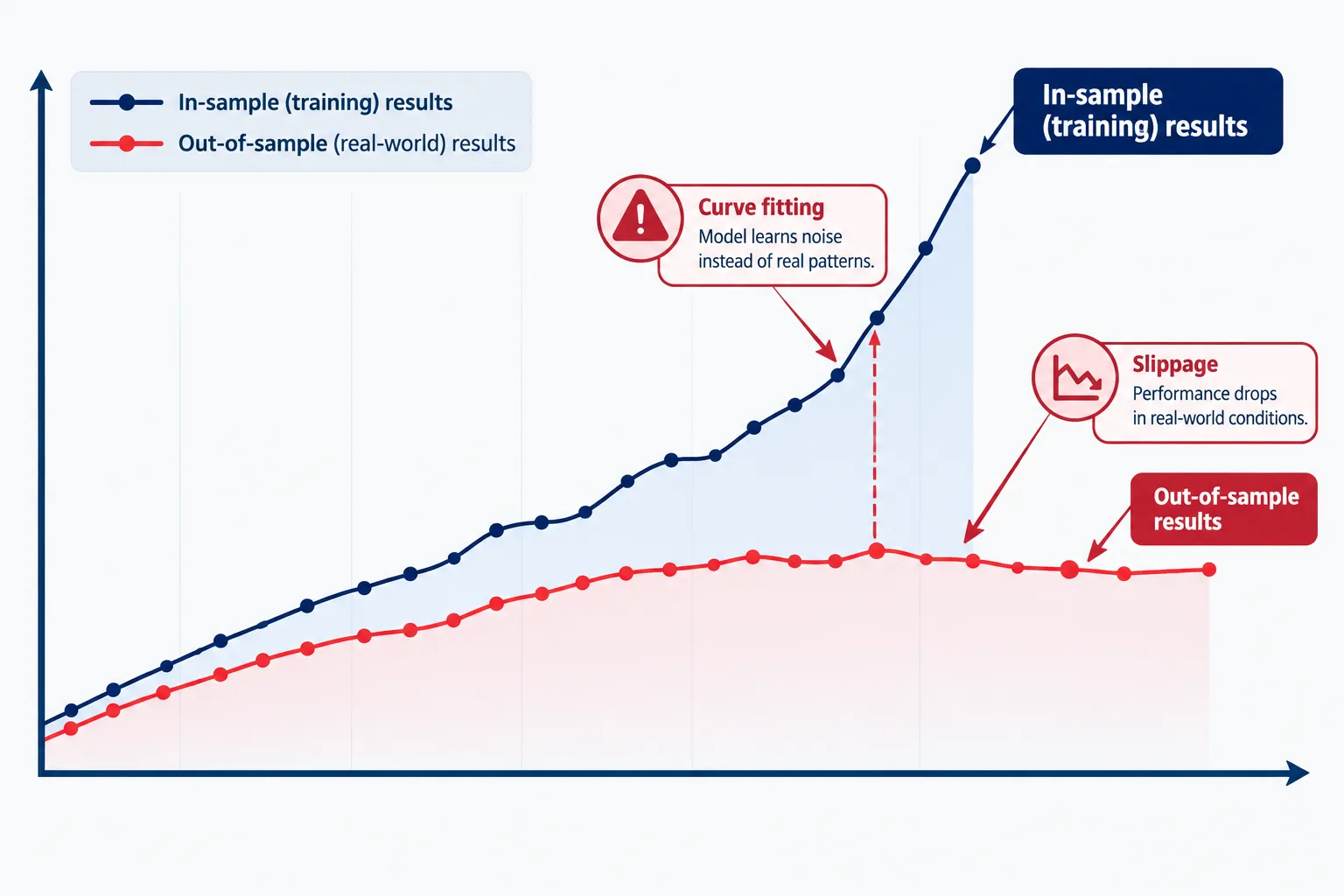
This trap does the most damage in backtesting TradingView strategies because it feels like success while it happens. Curve fitting means tuning inputs until the strategy matches past noise, not a repeatable edge.
How to spot it: if the strategy has a dozen inputs, performs brilliantly on one date range and falls apart when you shift the window by a few months, that is the signature. Another tell: small changes to one input swing results wildly.
The fix: split your history. Build and tune on an earlier period, then run the untouched rules on a later period the strategy never saw. With Deep Backtesting you can set the test range directly. Only trust the result from the untouched period, and prefer settings that work across a wide range of input values over the single best value.
Did you test a period that matches how you will trade?
A swing strategy tested only on a quiet stretch will look nothing like its performance during an earnings-season gap week. A day trading strategy tested only in the morning tells you nothing about the afternoon.
How to spot it: check whether your test window includes trending, choppy and volatile stretches, and whether the instrument’s behavior then matches what you will trade now. The Time patterns tab in Trades analysis shows when your trades actually happen.
The fix: match the test window to your holding period and your trading hours. If you plan to trade only the first hour, restrict the strategy to the first hour in code and test that. Our ORB strategy review shows how much results swing between markets and windows for a single idea.
Can ChatGPT or Claude Backtest a Trading Strategy?
They can write the code for backtesting TradingView strategies. They cannot verify your data, catch every repainting bug on their own, or know whether your sample is honest. That part is still yours.
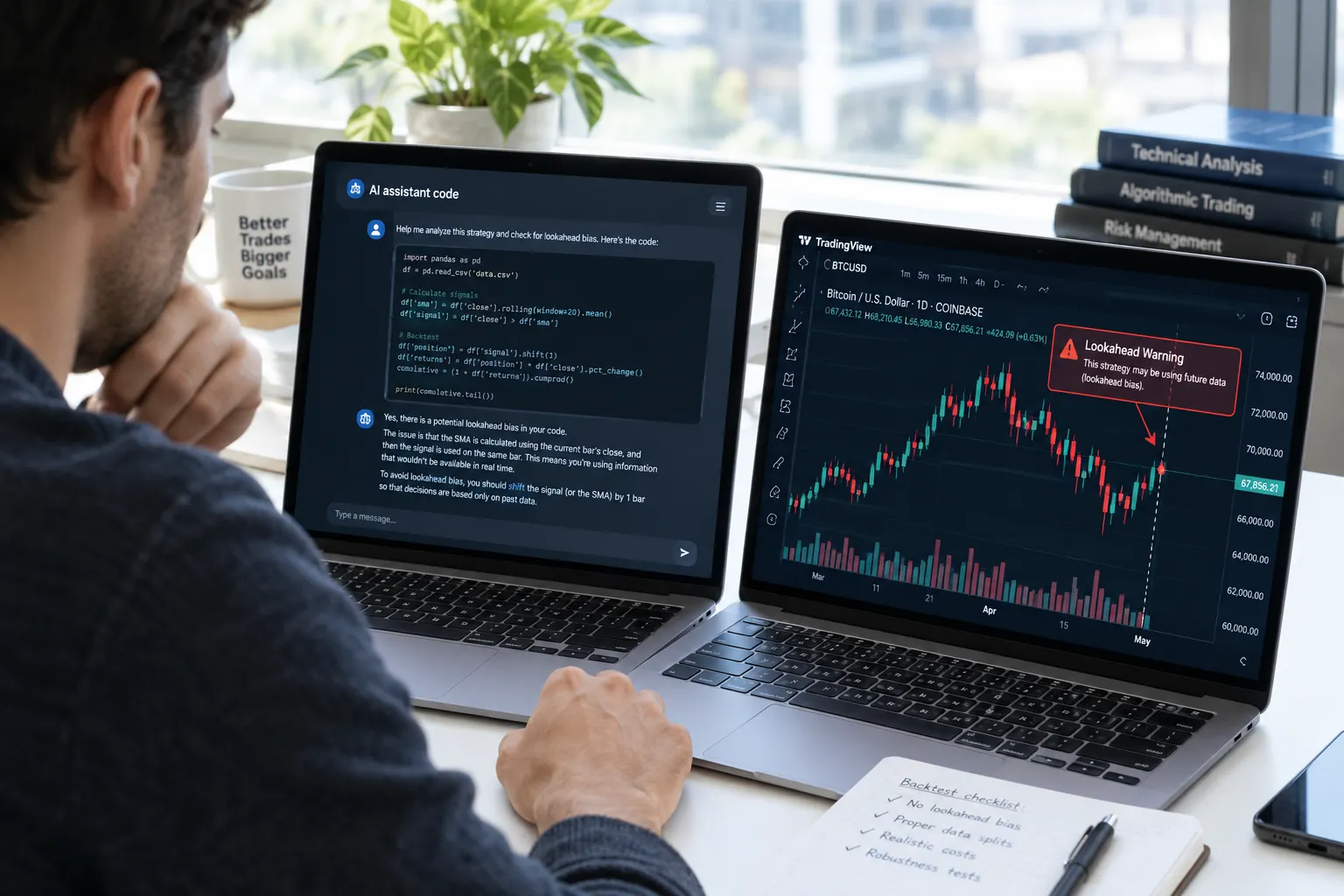
An AI assistant can turn a plain-English rule into a Pine Script strategy in seconds, and it can explain what each line does. It will also happily hand you a glowing report built on a request.security() call that leaks future data, because the code compiles and the numbers look good. Treat AI-written strategies exactly like human-written ones:
- Ask the assistant to list every place the script reads data that might not be final on the current bar.
- Ask it to set commission, slippage and initial capital explicitly in the
strategy()call so the settings travel with the script. - Read the List of trades yourself and check a dozen fills against the chart.
- Run the untouched rules on a period the assistant never saw while writing the code.
What Does a 90% Win Rate Claim Really Tell You?
Almost nothing on its own. What matters is the payoff: how much you make on winners compared with what you lose on losers.
An illustrative example, not a real strategy: a system wins 90% of the time with an average gain of $10, and loses 10% of the time with an average loss of $200. Over 100 trades that is $900 of gains against $2,000 of losses, a net loser despite the headline. Flip it: a system that wins only 40% of the time but makes $300 per winner and loses $100 per loser earns $12,000 against $6,000 over the same 100 trades.
The Strategy Report shows both numbers. In Metrics, read profitable trades next to profit factor. In Trades analysis, the Distribution tab shows the spread of wins and losses. A 90% win rate headline is marketing. Payoff is the math.
What Should You Do After a Backtest Looks Good?
Paper trade it. Backtesting TradingView strategies tells you what might have happened; a forward test tells you what does happen. A clean result on history and a clean result live are different experiences, because live trading adds execution delay, emotion and real fills. Run the strategy forward on a simulator for at least 20 sessions, then compare its trades with what the backtest would have produced over the same days.
Our TradingView paper trading guide covers the forward-test workflow, including the commission setting that is off by default in the simulator. If you plan to automate the strategy, see our TradingView tool profile for the platform’s broader feature set.
Watch the gap between backtest and live. If live results consistently trail, revisit the five traps before blaming the market. The usual suspects, in order: costs set too low, a repainting signal, and a test window that did not match the market you traded.
Frequently Asked Questions
How do I backtest a TradingView indicator?
Backtesting TradingView indicators requires turning them into a strategy script with a strategy() declaration and entry and exit calls. Plain indicators draw signals but produce no Strategy Report. Add the strategy to a chart, set commission, slippage and capital in Properties, then read the report.
Does TradingView have a backtesting tool?
Yes. Adding any strategy to a chart opens the Strategy Report at the bottom of the screen, with Metrics, Performance analysis, Trades analysis and a List of trades. Deep Backtesting extends it to up to 2 million bars on Premium and higher plans.
Can you backtest on TradingView for free?
Partly. The free Basic plan lists 5K historical bars, which covers years of daily data but only weeks of 5-minute data. Deep Backtesting, which tests up to 2 million bars, needs a Premium or higher plan.
Does TradingView have market replay?
Yes, it is called Bar Replay, and TradingView lists it on the Essential plan and higher. It hides future bars so you can step through history by hand. It does not work on formula spreads, Renko, Kagi, Point and Figure, Range, Line Break, Volume footprint or TPO charts, or charts in a converted currency.
Why does my TradingView backtest not match live trading?
Usually costs, repainting or fill assumptions. Commission and slippage must be set by hand, signals that use unfinished bar data repaint, and the broker emulator assumes a fixed price path inside each historical bar. Enable the Bar Magnifier on Premium or Ultimate for tighter fills.
Can ChatGPT or Claude backtest a trading strategy?
They can write the Pine Script or Python code quickly. They cannot verify your data, catch every look-ahead bug or judge whether your sample is large enough. Check the List of trades yourself and test on a period the AI never saw.
What does a 90 percent win rate mean in a backtest?
On its own, very little. A system that wins 90 percent of the time can still lose money if its losers are much bigger than its winners. Read the win rate next to profit factor and the distribution of wins and losses.
Our Take
Backtesting TradingView strategies is useful due diligence when you treat it as a cross-examination instead of a sales pitch. The Strategy Report, Bar Replay and Deep Backtesting each solve a different piece of the puzzle, but none of them protect you from repainting, zero-cost settings, small samples, curve fitting or a mismatched window. Change the 1,000,000 default capital to your real account, enter real commission and slippage, read the List of trades line by line, and keep an untouched period for the final test. Then paper trade it. Systems over hacks, every time.
Related: if you are weighing TradingView against a broker platform for testing, read our thinkorswim review on AI Stock Picker App.
Built something that survived out-of-sample testing and real costs, not just a pretty equity curve? Submit it for a look before you trust it with money.
Stay alpha.
The FullStack Alpha research desk tests AI trading bots on paper and live accounts. Reviewed and edited by Jay Rocco, Founder and Editor.
