

The FullStack Alpha research desk tests AI trading bots on paper and live accounts. Reviewed and edited by Jay Rocco, Founder and Editor.
By FullStack Alpha Editorial Team | Reviewed by Jay Rocco, Chief Editor
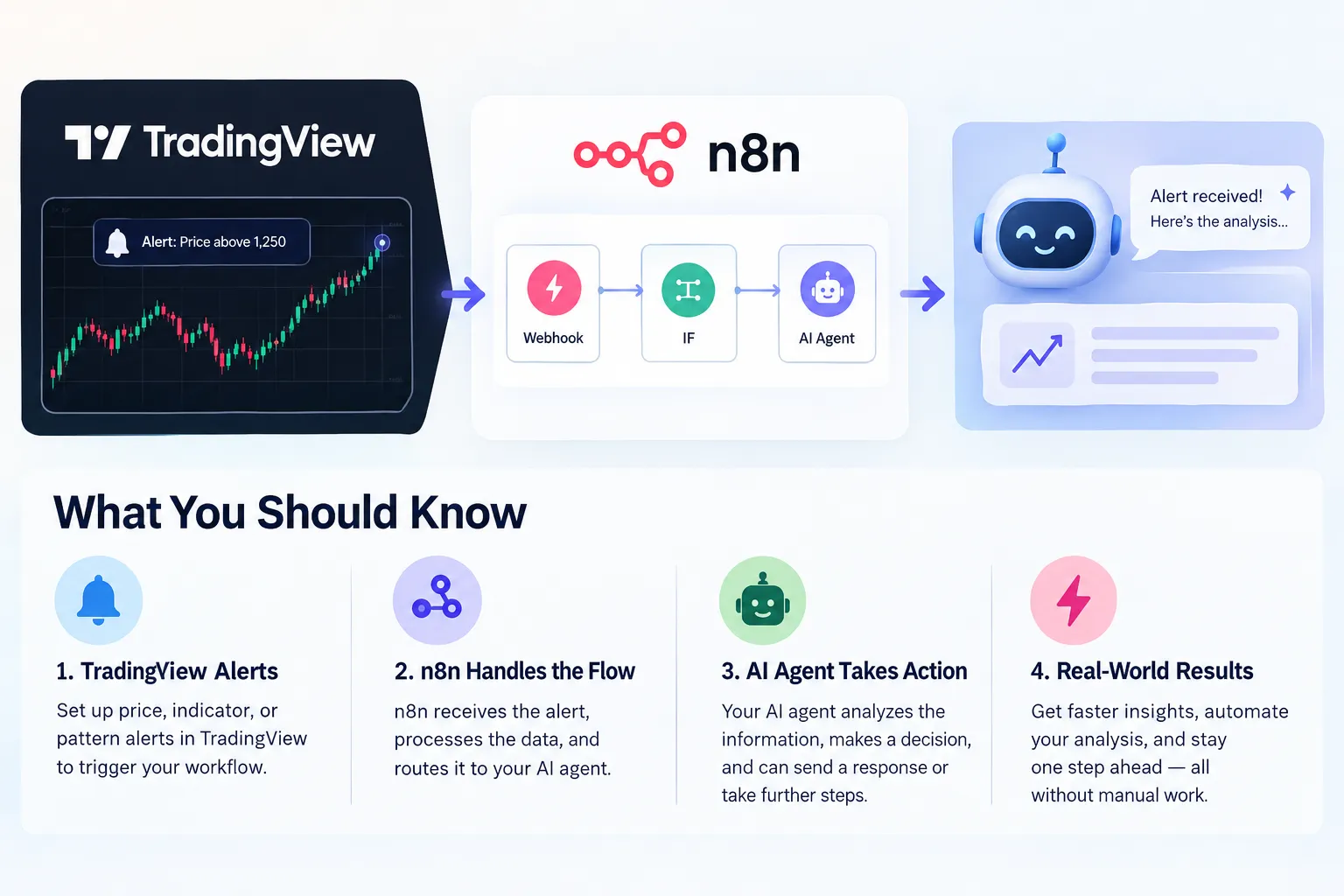
TradingView alerts reach an AI agent by firing a webhook (an automatic HTTP POST to a URL you choose) into an n8n Webhook node, where the alert message gets parsed, checked, logged, and only then acted on. The AI layer should work as a validator, not a signal generator: TradingView decides that a condition happened, the agent decides whether the context still makes sense. Keep order size, symbol permissions, and loss limits in deterministic nodes, never in a prompt. The first guardrail to add is a shared secret inside the alert message so random internet traffic can’t fake a trade.
What You Should Know
- TradingView webhook alerts require two-factor authentication on the account, per TradingView’s own webhook help page (checked October 2026).
- TradingView cancels the request if your server takes longer than three seconds to respond. Only ports 80 and 443 are accepted, and IPv6 isn’t supported for webhooks (TradingView Help Center, checked October 2026).
- TradingView publishes four webhook sender IPs for allowlisting: 52.89.214.238, 34.212.75.30, 54.218.53.128, 52.32.178.7.
- n8n’s Webhook node has separate test and production URLs, supports Basic Auth, Header Auth and JWT Auth, and defaults to a 16 MB payload limit (n8n docs, checked October 2026).
- n8n’s dedicated Agent feature is still marked Preview as of October 2026, available on all Cloud plans and self-hosted from version 2.32.3. n8n says agents can make mistakes. That matters when money is attached.
How Do TradingView Alerts Work?
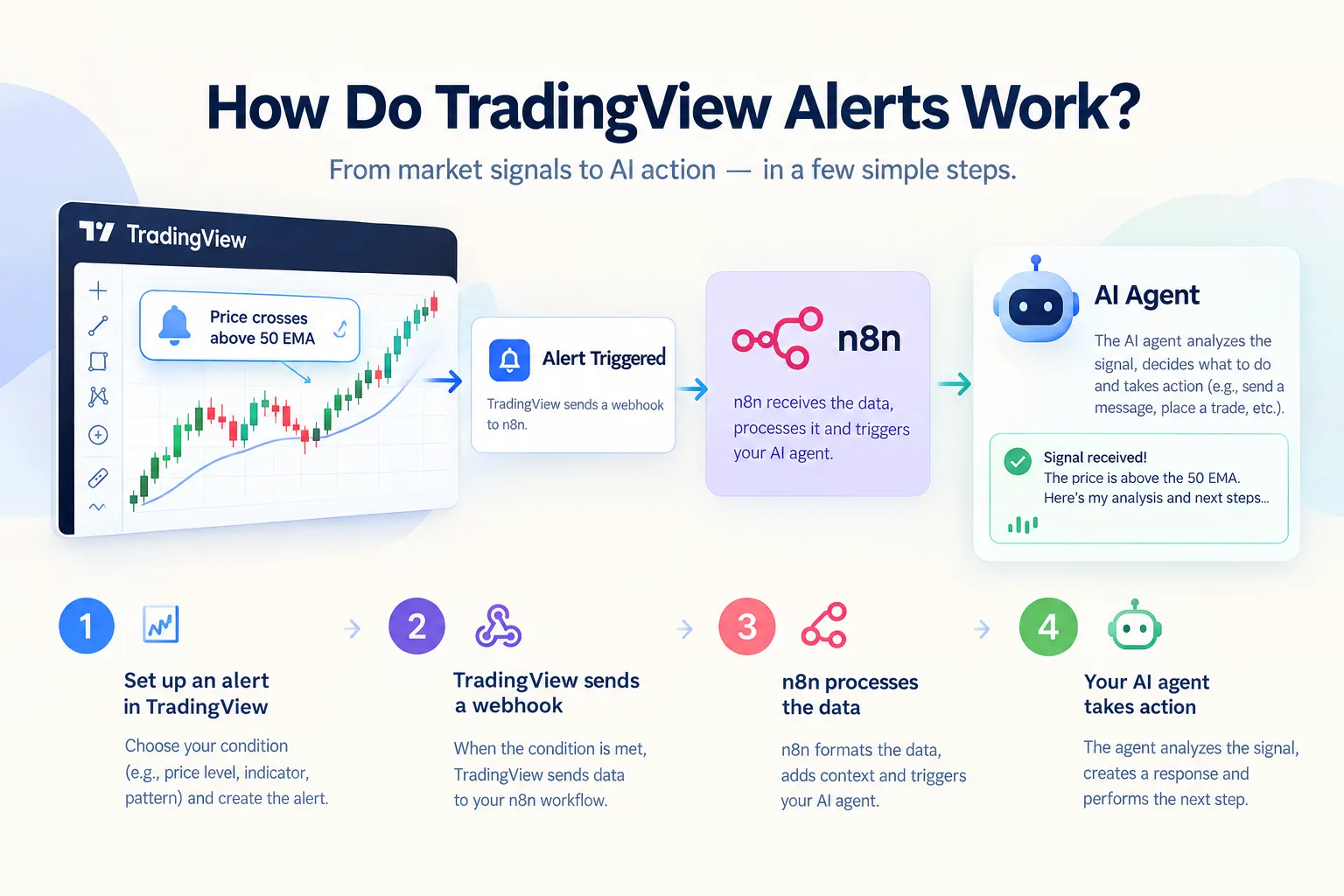
A TradingView alert is a saved condition that watches a chart and does something when the condition becomes true. That “something” can be a popup, an email, an app notification, or a webhook POST to a URL. The chart doesn’t need to be open. The alert runs on TradingView’s servers.
Three condition types cover almost everything retail traders build:
- Price conditions. “Crossing 182.50.” Simple support and resistance work. Support is a level buyers keep defending; resistance is a level sellers keep hitting.
- Indicator conditions. A moving average crossover, RSI leaving oversold, a volume spike. Whatever the indicator plots, you can usually alert on.
- Script conditions. Pine Script strategies and custom indicators can expose their own alert conditions, which is how most people wire up a real setup rather than a bare price level.
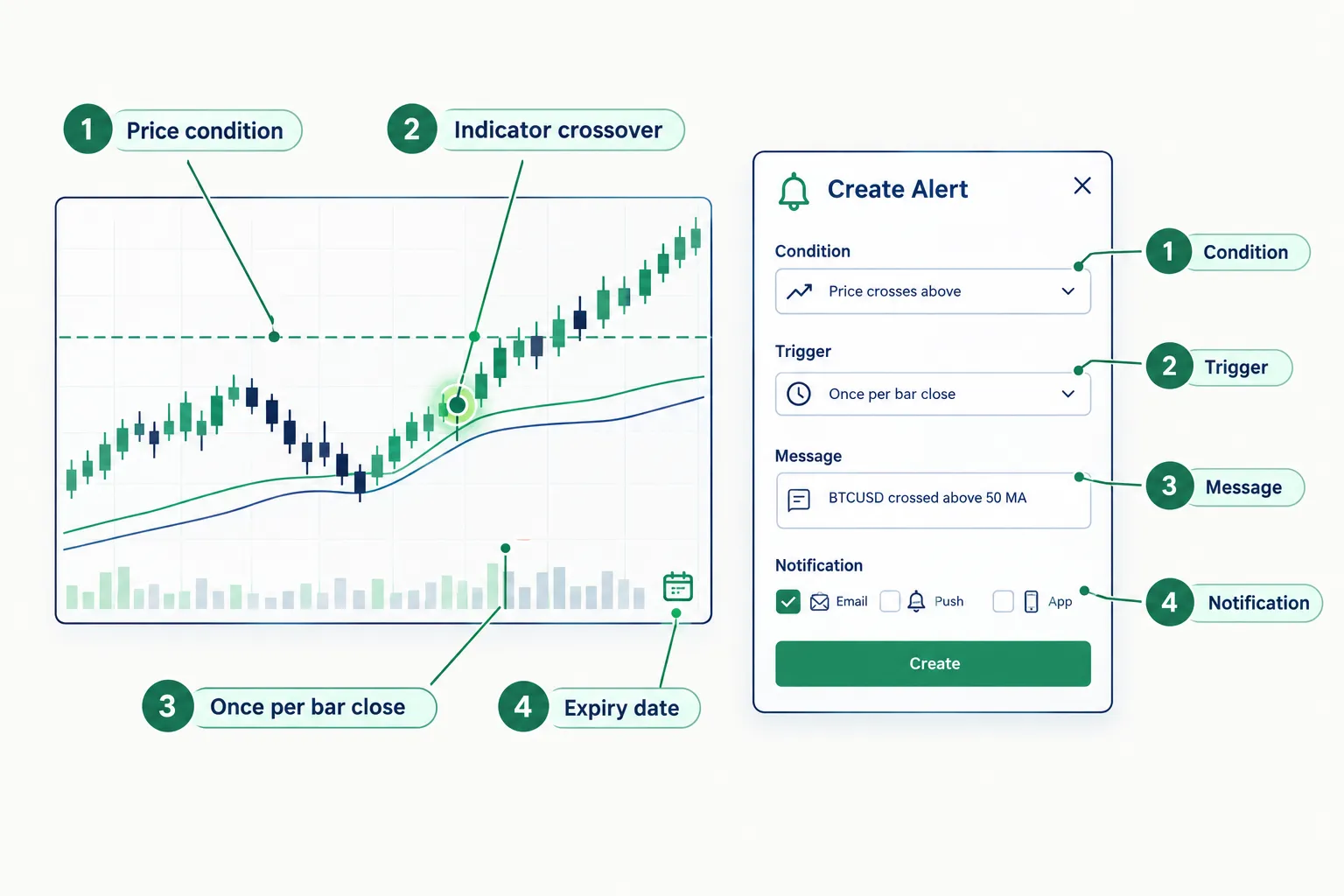
How to set alerts on TradingView
- Open the chart and the symbol you care about.
- Click the alert (clock) icon, or press the alert shortcut.
- Pick the condition: the symbol, the trigger (crossing, greater than, entering a channel), and the value or indicator.
- Choose the trigger frequency. “Once per bar close” is the one that stops you getting faked out. Intrabar triggers fire on a wick that may vanish before the candle closes, which is how a bull trap turns into an automated order.
- Set the expiry. Free accounts get alerts that expire; check the limit on your plan.
- Write the message. This field is where the whole automation lives.
- Under notifications, tick Webhook URL and paste your endpoint.
Decision rule: if the alert is going to trigger money movement, use bar close, not intrabar. Always. A 15-second wick is not price action, it’s noise.
Common mistake: leaving the default message (“{{exclamation}} Alert on AAPL”). That’s human-readable and machine-useless. Write structured JSON in the message field instead, with ticker, action, price, timeframe, strategy name, and a secret token. TradingView sends valid JSON with an application/json content type; anything else goes out as plain text, which makes parsing on the other end messier.
Which TradingView Plan Do You Need for Webhook Alerts?
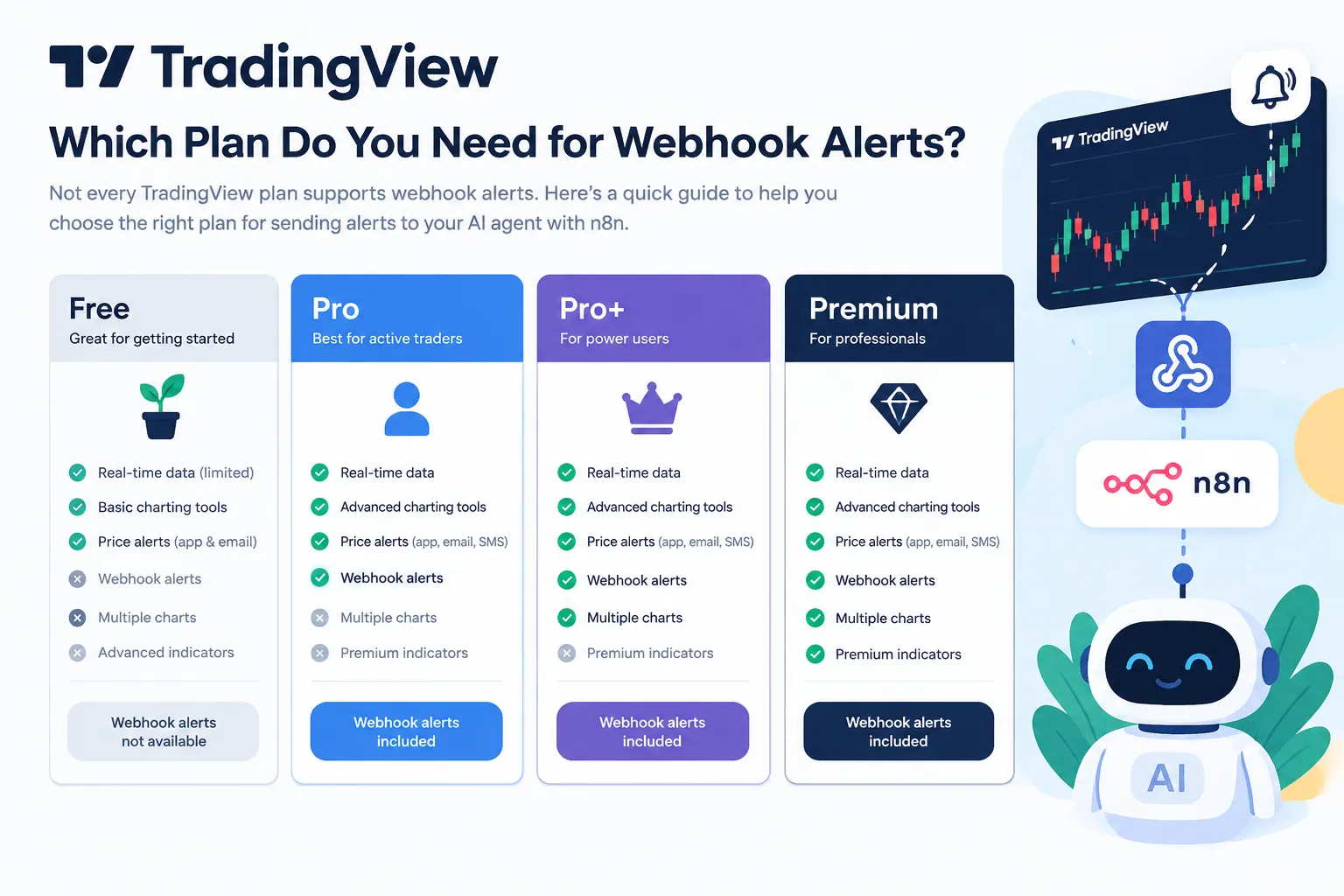
Webhook alerts are a paid feature on TradingView, not a free-tier one, and the exact plan tiers and alert counts change often enough that you should check the official page before paying. TradingView lists plan features and alert limits on its pricing page; confirm the current tier that includes “Webhook notifications” there rather than trusting a blog post, including this one.
What’s stable and confirmable from TradingView’s own webhook documentation as of October 2026:
- Two-factor authentication must be enabled on the account before webhook alerts will work.
- The receiving endpoint must answer within three seconds or TradingView cancels the request.
- Only ports 80 and 443 are supported. No custom ports.
- IPv6 is not currently supported for webhook endpoints.
- Requests come from four published IPs you can allowlist.
That three-second ceiling is the single most important design constraint, and most tutorials skip it. An AI model call can easily take four to ten seconds. If you run the AI check before responding to TradingView, your tradingview webhook will time out and you’ll be debugging ghosts. The fix is simple: respond immediately, then process. More on that below.
For a plain breakdown of what each TradingView tier actually buys you beyond alerts, our TradingView pricing breakdown covers it, and the TradingView tool profile has the scored review.
Edge case: some traders pay for a plan purely for the alert count, then realise their strategy only needs three alerts. Count your alerts before upgrading. Paying for 400 when you use six is the trading-tool equivalent of a gym membership you visit in January.
What Does the n8n Workflow From Alert to Paper Order Look Like?
The chain is short and boring, which is exactly what you want. TradingView fires a webhook into an n8n Webhook node. n8n answers instantly, parses the message, runs an AI validation step, runs hard rule checks, sends a paper order to a broker API, and writes a log line. Six links, each one testable on its own.
n8n is a workflow automation tool: you connect nodes on a canvas, each node does one job, data flows left to right. Self-hosted or cloud, your choice. For trading it beats most alternatives because you can see every execution in history and replay it.
| Step | n8n node | What it does | What can fail |
|---|---|---|---|
| 1. Receive | Webhook | Catches the POST from TradingView, replies immediately | Wrong URL, workflow not activated, response slower than 3 seconds |
| 2. Authenticate | IF / Code | Checks the shared secret in the message body | Token missing, token rotated and alert not updated |
| 3. Parse | Edit Fields (Set) or Code | Pulls ticker, action, price, timeframe into clean fields | Alert message isn’t valid JSON, so it arrives as plain text |
| 4. AI check | Message an Agent / AI Agent | Confirms context, returns a structured verdict | Model latency, vague prompt, agent inventing a field |
| 5. Rule checks | IF / Switch | Duplicate filter, market hours, position cap, daily loss stop | Timezone mismatch, stale state, rule written as a soft suggestion |
| 6. Order + log | HTTP Request + Google Sheets / Postgres | Sends paper order to broker API, writes the audit line | Expired API key, wrong base URL, order rejected silently |
The fix for the three-second rule: set the Webhook node’s response mode to respond immediately, and let the rest of the workflow run after the reply. TradingView gets its acknowledgement in milliseconds. Your AI agent can take eight seconds and no one minds.
Quick example of a clean alert message: a JSON object carrying secret, ticker, action (buy or sell), price, timeframe, strategy, and TradingView’s own timestamp placeholder. Seven fields. That’s enough to validate, deduplicate, size, and log.
How Do You Build the n8n TradingView Workflow Step by Step?
Build it in the order the data flows, and test each node before adding the next. Most broken n8n tradingview setups are broken because someone wired all nine nodes, fired one alert, and got nothing back with no idea which link failed.
Step 1: Add the Webhook node
New workflow, add a Webhook node, set the HTTP method to POST. n8n shows you two URLs: a test URL that only listens while you click “Listen for test event,” and a production URL that goes live when the workflow is activated. Use the test URL while building.
What you should see: two URLs displayed in the node panel, with a toggle between Test and Production.
Common error: pasting the test URL into a live TradingView alert. It works once during your test session, then silently stops. Half the “tradingview alerts not firing” posts on Reddit are this exact mistake.
Step 2: Turn on authentication
In the Webhook node options, pick Header Auth and set a header name and value. TradingView’s alert dialog doesn’t let you send custom headers, so the practical route is a shared secret inside the alert message body, checked by an IF node in step 4. Use the node’s IP allowlist field with TradingView’s four published sender IPs as a second layer. Not a replacement for the secret, a layer on top of it.
Step 3: Fire a test alert
Click Listen for test event, go to TradingView, create an alert with a condition that will fire soon (a price level just above current price works), paste the production URL for a real test or the test URL for a build test, and save.
What you should see: n8n catches the payload and shows the JSON. If the content type is text/plain, your alert message isn’t valid JSON. Fix the braces and quotes in the TradingView message field.
Step 4: Validate the secret
Add an IF node. Condition: the secret field from the incoming body equals your stored value. True branch continues, false branch goes to a No Operation node or a logging node so you can see rejected attempts.
Common error: comparing a string to a number. n8n is strict. Keep the secret alphanumeric.
Step 5: Normalise the fields
Add an Edit Fields (Set) node. Map ticker, action, price, timeframe, strategy and timestamp into named fields. Uppercase the ticker. Lowercase the action. Small thing, saves an hour later when your broker API rejects “Buy” but accepts “buy.”
Step 6: Add the AI check
Add an AI Agent node, or n8n’s newer Message an Agent node if you’re on a version that includes the Agent feature. Connect a model credential. The important setting: constrain the reply to a JSON schema. n8n’s Message an Agent node supports structured output, so force fields like action, confidence, reason, and nothing else.
What you should see: a clean JSON object out, every time, with no prose wrapper.
Common error: an open-ended prompt. “Should I take this trade?” gets you an essay. “Return approve or reject plus a one-sentence reason, based only on the supplied fields” gets you something a Switch node can read.
Step 7: Rule checks
Add IF or Switch nodes for the hard limits: is the market open, has this ticker already fired in the last N minutes, is position size under the cap, is the daily loss stop untripped. These are deterministic. No model involved. If the rules and the AI disagree, the rules win.
Step 8: Send a paper order
Add an HTTP Request node pointed at your broker’s paper trading endpoint. Alpaca is the usual starting point because its paper environment mirrors the live API and uses a separate base URL and key pair, so a mistake costs nothing. Method POST, auth via header credentials, body built from your normalised fields.
Common error: leaving live keys in while testing. Keep paper and live credentials in separate n8n credential entries with obvious names. If you want a route that handles broker plumbing for you instead, TradersPost sits between TradingView and the broker.
Step 9: Log everything
Append a row to Google Sheets or Postgres: timestamp, ticker, action, AI verdict, AI reason, rules passed or failed, order ID, fill price. A n8n trading bot without a log is a slot machine with extra steps. You can’t improve a process you can’t review.
Step 10: Activate and swap the URL
Toggle the workflow active, copy the production URL, update every TradingView alert to point at it. Executions now show in n8n’s execution history, which is your debugging home base forever after.
For the wider picture on wiring charts to execution, see our guide to TradingView automated trading.
Do You Need to Code to Set Up TradingView and n8n Integration?
No. The whole chain above can be built with the Webhook, IF, Edit Fields, AI Agent, HTTP Request and Sheets nodes, all configured through dropdowns and form fields. You will write one thing by hand: the JSON message inside the TradingView alert box, which is about eight lines of key-value pairs.
Where light coding helps:
- A Code node for anything the Set node makes awkward, like computing position size from account equity and stop distance.
- Pine Script if you want the alert condition itself to come from a custom strategy rather than a built-in indicator.
- Reading an API doc. Not coding, but you’ll need to know what fields your broker expects.
Choose the no-code route if you’re using a standard indicator condition and a broker with a simple REST API. Choose the code route if your sizing logic depends on live account state or you’re routing multiple strategies through one endpoint.
What Should the AI Check Actually Do?
The AI check is a filter, not a decider. Its job is to look at an alert that already met a deterministic condition and answer one narrow question: does anything about this specific firing look wrong? TradingView already proved the crossover happened. The agent’s only value is context the chart condition can’t see.
Good jobs for the AI layer:
- Reject stale alerts. Compare the alert timestamp to now. Anything older than your tolerance gets dropped with a reason.
- Reject duplicates and near-duplicates. Same ticker, same direction, within the cooldown window.
- Sanity-check the payload. Price field wildly off the last known price? Ticker not on the approved watchlist? Reject.
- Add a context note. Is the symbol in earnings season this week, is the tape choppy, is the move already overextended. One line, logged.
- Write the log line a human can read in three seconds. “Rejected: third AAPL long in 14 minutes, cooldown active.”
What it must never do:
- Invent a trade no one asked for. No new symbols, no reversals, no “I noticed TSLA looks interesting.”
- Set position size. That’s arithmetic with a hard cap, not a judgement call.
- Override a rule check. If the daily loss stop is tripped, confidence 0.97 means nothing.
- Be the only thing standing between an alert and an order. n8n’s own documentation flags the Agent feature as Preview and says agents can make mistakes. Design as if it will.
The industry pattern worth copying: TradingView owns the deterministic trigger, n8n owns orchestration and controls, the model owns conservative validation only. That split is testable. Asking a model to read raw market data and generate signals is not, because you can’t reproduce the same answer twice.
Process over prediction. The agent’s upside is catching the obvious garbage before it becomes a fill, not finding alpha you missed.
For a sense of where automated systems earn their keep and where they’re subscription theatre, our head-to-head on the best AI trading tools of 2026 covers the field.
Which Guardrails Stop a Bad Alert From Becoming a Bad Trade?
Six guardrails handle the realistic failure modes: a forged request, a repeated alert, an oversized order, an off-hours fill, a losing streak, and a workflow you can’t stop. Every one of them lives in a deterministic node or at the broker, never in a prompt.
| Guardrail | What it blocks | How to set it |
|---|---|---|
| Shared secret in the message | Anyone who finds your webhook URL and POSTs fake orders | Add a long random secret field to the TradingView alert message; IF node compares it to a stored value before anything else runs |
| Duplicate filter | The same setup firing three times on a choppy tape | Store last-fired time per ticker (Sheets, Redis, or n8n static data); IF node drops anything inside your cooldown window |
| Max position size | One bad payload turning into an account-sized order | Hard-cap shares and notional in a Set node with fixed numbers; reject, don’t clamp, if the request exceeds it |
| Market hours check | Orders queued into a gap or a holiday | IF node comparing current time against an explicit session window in a named timezone; reject outside it |
| Daily loss stop | Revenge trading at machine speed | Running P&L total in your log; a Switch node halts the workflow once the day’s loss hits your limit |
| Kill switch | Everything else | One boolean in a sheet or env variable checked as the first rule node; flip it and the workflow stops placing orders without you deleting anything |
Two more worth adding once the basics work:
- Symbol allowlist. Explicit list of tickers the workflow may trade. Anything else gets logged and dropped. Low float names and thin tickers are where automated orders get filled at prices that ruin your week.
- Human approval gate. n8n agents can pause and request approval before running sensitive tools. For a first deployment, route the AI verdict to Telegram or email and approve manually. You keep the speed benefit of instant analysis and the judgement benefit of a human thumb.
Run it on paper for 30 days before a single live dollar. Not because paper trading teaches you emotional control (it doesn’t), but because it exposes the plumbing bugs: timezone drift, duplicate fills, rejected payloads. Paper trade it first. Play stupid games, win stupid prizes.
Can TradingView Alerts Automatically Execute Trades?
Not by themselves. TradingView doesn’t place orders at your broker from an alert. The alert fires a webhook; something downstream, your n8n workflow or a bridge service, has to translate that into a broker API call. TradingView does offer direct broker integrations for manual trading from the chart, but that’s a human clicking, not an alert executing.
So the real chain for tradingview alerts to broker is: alert, then webhook, then middleware (n8n, a bridge service, or your own server), then broker API, then fill.
Three honest cautions before anyone automates live:
- Fills don’t match backtests. Slippage, partial fills, and spread on thin names all show up in reality and not in a strategy tester.
- Your workflow will go down. Cloud restarts, expired tokens, a rate limit. Decide now what happens to an open position when the automation stops answering. Broker-side stop losses, not workflow-side ones.
- Automation multiplies whatever process you already have. A good system automated is faster. Overtrading automated is just faster overtrading.
If you want the broader view on handing execution over, our guide on how to automate trading and the roundup of fully automated AI trading bots both go deeper on the execution side, and our TradingView platform review scores the charting side you’re firing the alerts from.
Is n8n Free, and What AI Agents Can You Use Instead?
n8n is open-source and can be self-hosted at no licence cost, which makes the free route a server bill rather than a subscription. n8n Cloud is paid and priced by execution volume and features, and the tiers change, so check n8n’s official pricing page for current numbers rather than any figure quoted in an article.
What’s confirmable from n8n’s docs in October 2026: the Agent feature is available on all n8n Cloud plans and on self-hosted installations from version 2.32.3, and it’s distinct from the older AI Agent workflow node. Turning the new Agent feature off doesn’t affect the AI Agent node.
Self-host if you want full control, no execution caps, and you’re comfortable maintaining a small server and its uptime. Use Cloud if you’d rather not be the one awake at 6:30am when the container dies and your alerts bounce.
Alternatives to n8n for the agent layer
- Make (formerly Integromat), visual, hosted, handles webhooks fine. Less flexible for custom logic than n8n.
- Zapier, easiest to start, most limited for conditional branching and custom API bodies.
- A plain serverless function (AWS Lambda, Cloudflare Workers), fastest response times, cheapest at scale, requires actual code.
- Dedicated trading bridges like TradersPost, purpose-built for TradingView-to-broker routing, less general-purpose.
- A model API called directly from your own script, skipping the workflow tool entirely.
The agent itself can be any major model with an API. What matters more than the model is the constraint: structured JSON output, a narrow prompt, and a rules layer that can overrule it.
How Does n8n Compare With Zapier and Webhook Services for Trading Alerts?
n8n gives the most control for the least ongoing cost if you self-host, Zapier gives the fastest setup with the least flexibility, and a dedicated bridge gives the least work with the narrowest scope. Pick by how much plumbing you want to own.
| Route | Cost | Control | Best for | The catch |
|---|---|---|---|---|
| n8n self-hosted | Server cost only, no licence fee | Highest: full branching, custom code, own database | Traders who want an auditable n8n trading bot and will maintain it | You own uptime, updates, and backups. If it’s down at the open, that’s on you |
| n8n Cloud | Paid tiers by execution volume (check official pricing) | High: same nodes, managed infrastructure | Same workflows without the sysadmin work | Execution limits matter if one alert triggers a long chain |
| Zapier | Paid tiers by task volume (check official pricing) | Low to medium: limited branching and payload shaping | A simple alert-to-Slack or alert-to-sheet relay | Zapier trading setups get awkward fast once you need rule checks and retries |
| Dedicated bridge (e.g. TradersPost) | Subscription (check official pricing) | Medium: trading-specific, less general logic | Getting tradingview alerts to broker working quickly | You inherit their supported brokers and their feature roadmap |
| Serverless function | Pennies at retail volume | Highest, if you write code | Developers who want sub-second response and no vendor | No visual execution history. You build your own logging |
Decision rule: if your workflow has more than three conditional branches, Zapier will fight you. Go n8n.
Can You Send TradingView Alerts to Slack or Discord Instead?
Yes, and for most people that’s the smarter first build. A tradingview webhook can point straight at a Slack or Discord incoming webhook URL, and you’ll get the alert in a channel within seconds with no middleware at all.
Two routes:
- Direct. Paste the Slack or Discord webhook URL into the alert’s webhook field. Format the message to match what that platform expects (Discord wants a
contentfield, Slack wantstext). Zero infrastructure, zero cost, zero control. - Via n8n. Alert hits n8n, gets enriched with the AI note and rule results, then posts a formatted message to Slack or Discord. Slower to build, much more useful. You can post “rejected, duplicate within cooldown” instead of just “ALERT: AAPL.”
Choose direct if you only want to be told. Choose n8n if you want to be told and have a record of why the system did or didn’t act.
Notification quality is its own topic. Our review of AI stock alert apps that buzz your phone before the move compares the dedicated options, and the trader reaction time test is a sobering way to find out how much your alert latency actually costs you.
Can You Use TradingView Alerts for Crypto, or Just Stocks?
Both, plus forex, futures and indices. Alerts attach to a chart symbol, so whatever TradingView charts, you can alert on. The practical difference is the session, not the mechanism.
- Stocks and ETFs trade a defined session, so your market-hours guardrail is mandatory. An alert at 2am on a US equity is a queued order waiting for an ugly open.
- Crypto runs 24/7, so there’s no session check, but weekend liquidity is thinner and spreads widen. A time-of-day filter still earns its place.
- Futures have their own session breaks and rollover dates. Your workflow needs to know which contract month it’s trading.
Edge case worth planning for: symbol naming. The ticker TradingView displays often isn’t the ticker your broker’s API expects, especially for crypto pairs and futures contracts. Build a small mapping table in your workflow rather than discovering this through rejected orders.
What’s the Difference Between TradingView Webhooks and Alerts?
An alert is the condition and its notifications. A webhook is one of those notification methods. Every webhook requires an alert; not every alert uses a webhook.
Put plainly: the alert is the trigger, the webhook is the delivery van. You configure the condition (price crosses 182.50), then tick which delivery methods you want: popup, email, mobile push, and webhook URL. Only the webhook can talk to another machine.
What makes the webhook different in practice:
- It carries whatever you put in the message field, so it can be structured data instead of a sentence.
- It requires 2FA on the account.
- It’s bound by the three-second response rule, ports 80 and 443, and IPv4 only.
- It can be received by anything that accepts a POST: n8n, Slack, Discord, your own server.
TradingView Alerts Not Firing: What Should You Check?
Work from the TradingView side outward, because the alert usually never left the building. Check these in order.
- Is the alert still active? Alerts expire. Open the alerts panel and look at the status, not the list.
- Is 2FA enabled? Webhook alerts need it on the TradingView account.
- Does your plan include webhooks? Confirm on TradingView’s pricing page.
- Trigger frequency. “Once per bar close” won’t fire mid-candle. “Only once” fires one time, ever, then sits there looking active.
- Is the condition actually true? Re-check the operator. “Crossing up” and “greater than” are different events.
- Is the symbol’s market open? A stock alert at 3am fires nothing.
- URL protocol and port. Must be http on 80 or https on 443. A custom port fails silently.
- IPv6 endpoint. Not supported. Your host needs an IPv4 address.
How Do You Troubleshoot n8n Not Receiving TradingView Alerts?
If TradingView shows the alert as triggered but n8n shows nothing, the problem is almost always the URL, the activation state, or the response time. Check in that order.
- Test URL vs production URL. The test URL only listens while you’ve clicked “Listen for test event.” Production URL requires the workflow to be activated. This is the number one cause.
- Workflow inactive. The toggle in the top right. Obvious, missed constantly.
- Three-second timeout. If your Webhook node’s response mode waits for the whole workflow, and the AI call takes six seconds, TradingView cancels. Set the node to respond immediately.
- Wrong HTTP method. TradingView sends POST. If your node is set to GET, nothing lands.
- Authentication mismatch. If you set Header Auth on the node, TradingView can’t send that header. Move the secret into the message body instead.
- IP allowlist too tight. If you entered only one of TradingView’s four sender IPs, three quarters of your alerts get dropped. Enter all four.
- Payload too large. Default limit is 16 MB, which no alert will ever hit, but self-hosted installs can change it with
N8N_PAYLOAD_SIZE_MAXif someone already did. - Content type. If your alert message isn’t valid JSON, it arrives as plain text and your parse node sees one long string instead of fields.
How do you test if your TradingView alerts are working?
Don’t wait for a real setup. Build a throwaway alert on a liquid symbol with a condition that’s already true (price greater than a level well below current price) and trigger frequency set to “Once per minute.” It fires within 60 seconds and tells you immediately whether the pipe works. Delete it after.
Then check n8n’s execution history, which records production runs. Every firing should show a green execution with the full payload. If the execution exists but failed at node four, you’ve found your bug in ten seconds instead of two days.
What Are the Common Mistakes With TradingView Alert Setup?
The failures repeat. Eight that cost people money or weeks:
- Intrabar triggers on an order-placing alert. A wick fires, price reverts, you own a position no one intended. Use bar close.
- No shared secret. The webhook URL is just a URL. Anyone who gets it can POST orders into your account.
- Human-readable alert messages. Fine for a phone buzz, useless for parsing.
- Running the AI call before responding to TradingView. Breaks the three-second rule every time.
- No duplicate filter. Choppy tape plus a sensitive condition equals four entries in six minutes.
- Live broker keys during testing. Separate credentials, obvious names, paper first.
- No logging. You can’t tell whether the system is working or just not failing loudly.
- Letting the AI decide position size. Sizing is arithmetic with a cap. Discipline beats prediction, and a number in a Set node is more disciplined than any prompt.
The meta-mistake: automating a strategy that was never profitable manually. Automation removes hesitation and execution lag. It does not create an edge. If you can’t write your edge in one sentence, a webhook won’t find it for you.
What Did the AI Pathways Video Show and Skip?
The video below, from the channel listed on the YouTube page as AI Pathways, walks through connecting TradingView alerts into an n8n workflow with an AI layer attached.
https://www.youtube.com/watch?v=Bxs9QmdOLoI
Treat anything shown as a demonstration, not a verified result. Video walkthroughs are useful for seeing the node layout and the alert dialog in motion, which is hard to convey in text. They’re less useful for anything involving outcomes.
| The claim | What a video like this typically shows | What’s usually skipped |
|---|---|---|
| ”Connect TradingView to an AI agent” | The alert dialog, the webhook field, the n8n canvas, nodes being wired | The three-second response constraint and why the agent must run after the reply |
| ”The AI analyses the signal” | A prompt, a model response on screen | Structured output enforcement, so the parse step doesn’t break on prose |
| ”It can place trades” | A broker node or HTTP request firing | Paper vs live separation, position caps, duplicate suppression, kill switch |
| ”It works” | One or two successful runs | Behaviour on a choppy day, on a duplicate alert, or when the model is slow |
What to take from any build video: the node names and the click path. What to supply yourself: every guardrail in the table above. A working demo and a system you can run unattended for a month are not the same artefact.
Frequently Asked Questions
Can you set alerts on TradingView?
Yes, on any plan, though the number of active alerts and access to webhook notifications depend on your tier. Open a chart, click the alert icon, set the condition, choose the trigger frequency and expiry, write the message, and pick your notification methods. Check TradingView’s pricing page for your plan’s current alert count.
How do you get TradingView alerts for free?
Free accounts include a limited number of active alerts with popup, email and mobile push notifications. Webhook delivery is a paid feature, so a free account can tell you something happened but can’t hand that event to another system. Confirm current free-tier limits on TradingView’s official pricing page, since they change.
Can you automate trades on TradingView?
Not directly from an alert. TradingView fires a webhook and something downstream has to call your broker’s API, whether that’s an n8n workflow, a bridge service, or your own server. Direct broker integrations on TradingView exist for manual chart trading, not for alert-driven execution.
What are the types of alerts?
Price alerts (a level is crossed), indicator alerts (a condition on a plotted indicator, like an RSI or moving average crossover), script alerts from custom Pine Script strategies, and drawing alerts attached to trendlines or channels. Each can deliver via popup, email, mobile push, or webhook.
What is the most powerful indicator in TradingView?
There isn’t one, and anybody selling you a specific answer is selling something. Volume, moving averages and RSI survive because they describe what’s happening rather than predicting it. The indicator matters far less than whether you have fixed entry and exit rules, a stop loss, and sizing you stick to.
Do you need a server to run n8n with TradingView?
Only if you self-host. n8n Cloud gives you a public production webhook URL with no infrastructure on your side. Self-hosting needs an IPv4 address reachable on port 80 or 443, since TradingView doesn’t support IPv6 or custom ports for webhooks.
Our Take
Let the AI veto alerts. Never let it invent trades.
That’s the whole position. TradingView is good at deterministic conditions and reports them identically every time. A language model is good at catching the obvious garbage: the stale timestamp, the fourth duplicate in ten minutes, the ticker that shouldn’t be on the list. Give it that job, constrain its output to a JSON schema, and put every limit that touches money in a plain IF node with a hard number in it.
The trader who runs this on paper for 30 days with a log, then turns on one symbol with a position cap, ends up with a system. The trader who wires a model straight to a live broker API over a weekend ends up with a story. Systems over hacks.
Built something that works, or broke something instructive? Submit your bot or setup to FullStack Alpha and we’ll put it through the same testing as everything else on the site.
Stay alpha.
The FullStack Alpha research desk tests AI trading bots on paper and live accounts. Reviewed and edited by Jay Rocco, Founder and Editor.
